
Promo on Demand includes two distinct drawing tools built for different situations — a quick, no-frills Pick Winners popup for fast decisions, and a full-screen Lottery Tool designed to be cast to a floor TV and put on a show for your players. Both draw from the same uploaded player pool, both maintain a complete audit trail, and both are controlled by the same role-based access system.
This guide covers everything from uploading your player list and navigating the Drawing Buckets table, to running a live broadcast drawing on your casino floor.
Role responsibilities: Only Admin users can upload player lists and create new drawing buckets. Frontend users can launch and run drawings that an admin has already set up, but they cannot upload or modify the player pool.
Getting to the Drawing Tool
For Admin users, the Drawings section is listed directly in the left navigation sidebar. Click Drawings to access the Drawing Buckets table and all upload tools.
For Frontend users, the navigation menu is collapsed by default to keep the interface clean. The Drawing tool is accessible by tapping the menu icon (three horizontal lines) in the top-left corner of the screen to expand the sidebar, then selecting Drawings from the menu. Once expanded, the drawing assigned to you will be visible and ready to launch.
Admin: Uploading a Player List
Before any drawing can be held, an admin must upload the player pool. P.O.D. accepts standard .XLSX spreadsheet files — typically exported directly from your property's player tracking system.
- In the admin sidebar, click Drawings.
- Use the .XLSX Upload option to upload your player file, or use Download Template to get a correctly formatted spreadsheet if you're building a list manually.
- After uploading, your drawing will appear as a new row in the Drawing Buckets table.
Each uploaded file becomes its own independent drawing bucket — meaning you can maintain multiple simultaneous drawing pools for different promotions, events, or player tiers at the same time.
The Drawing Buckets Table
The Drawing Buckets table is your control center for all current and historical drawings. Each row represents one uploaded player pool.
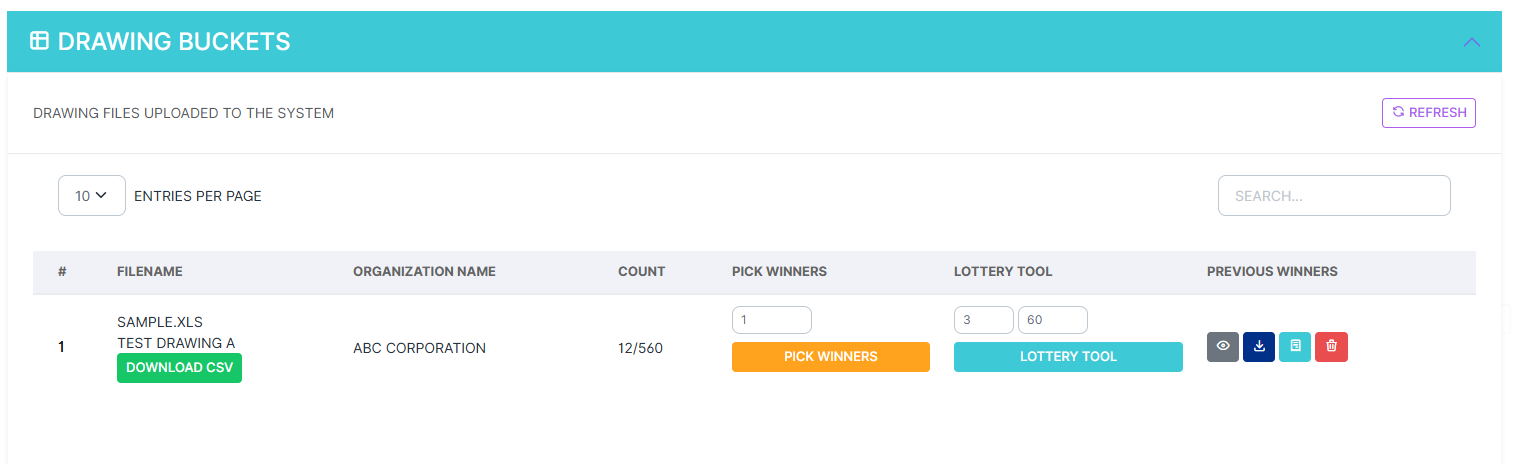
For each drawing bucket, the table shows:
- Filename — The name of the uploaded spreadsheet, plus a Download CSV button to retrieve the original file.
- Organization Name — The organization this drawing belongs to.
- Count — How many winners have been drawn so far vs. the total pool size (e.g., 12/560).
- Pick Winners — Launches the quick-draw popup. Enter the number of winners to draw and click the orange button.
- Lottery Tool — Launches the full-screen broadcast drawing experience. Enter the number of winners and click the teal button.
On the far right of each row, four action icons give you deeper access to that drawing bucket's history:
- Show Previous Winners — Opens a detailed view of everyone drawn from this bucket, with full session data and a searchable, paginated table.
- Download Previous Winners — Exports the complete winners list as a CSV file for your records or reporting purposes.
- Show Drawing Bucket Audit — Opens a full audit trail of every action taken on this drawing bucket — who ran each draw, when, and what the result was.
- Reset Previous Winners — Clears the winner history for this bucket, returning all participants to the eligible pool. Use this if you need to re-run a drawing from a clean state.
Tool 1: Pick Winners (Quick Draw)
The Pick Winners tool is designed for speed. It draws one or more winners from the player pool instantly and displays the result in a popup — no animations, no broadcast experience. This is the right tool when you need a winner fast and the result doesn't need to be shared with a room full of players.
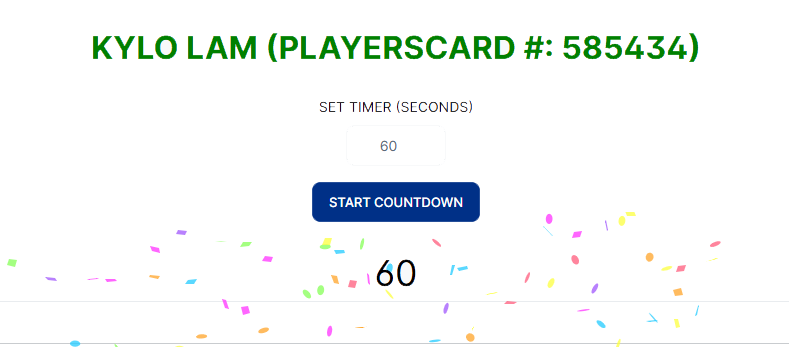
When a winner is drawn, the tool displays:
- The winner's full name in large, prominent text.
- Their Loyalty Number for easy verification at the floor.
Countdown Timer
Below the winner's name, you'll find a Set Timer (Seconds) field and a Start Countdown button. This is one of the most practical features for live floor events.
Set a timer — typically 30 to 60 seconds — to give the winner time to make their way to the redemption area. If the winner doesn't arrive before the countdown reaches zero, you can immediately draw another name from the same pool without leaving the tool. The previous draw is logged in the audit trail regardless.
When to use Pick Winners: Back-of-house decisions, email drawings, quick staff giveaways, or any situation where you need a result immediately and don't need to display it to a public audience. It's also useful for drawing multiple secondary winners in rapid succession after a main event.
Tool 2: The Lottery Tool (Broadcast Drawing)
The Lottery Tool is the centerpiece of any high-energy promotional event. It's a full-screen, visually engaging drawing experience built specifically to be cast to your floor TVs — and it makes an impression.
Cast this to your TV. The Lottery Tool is designed to be displayed on a large screen. If you're running a drawing that players in the room will be watching, this is the tool to use. See How to Display P.O.D. on Your Digital TVs or the j5create ScreenCast guide for setup instructions.
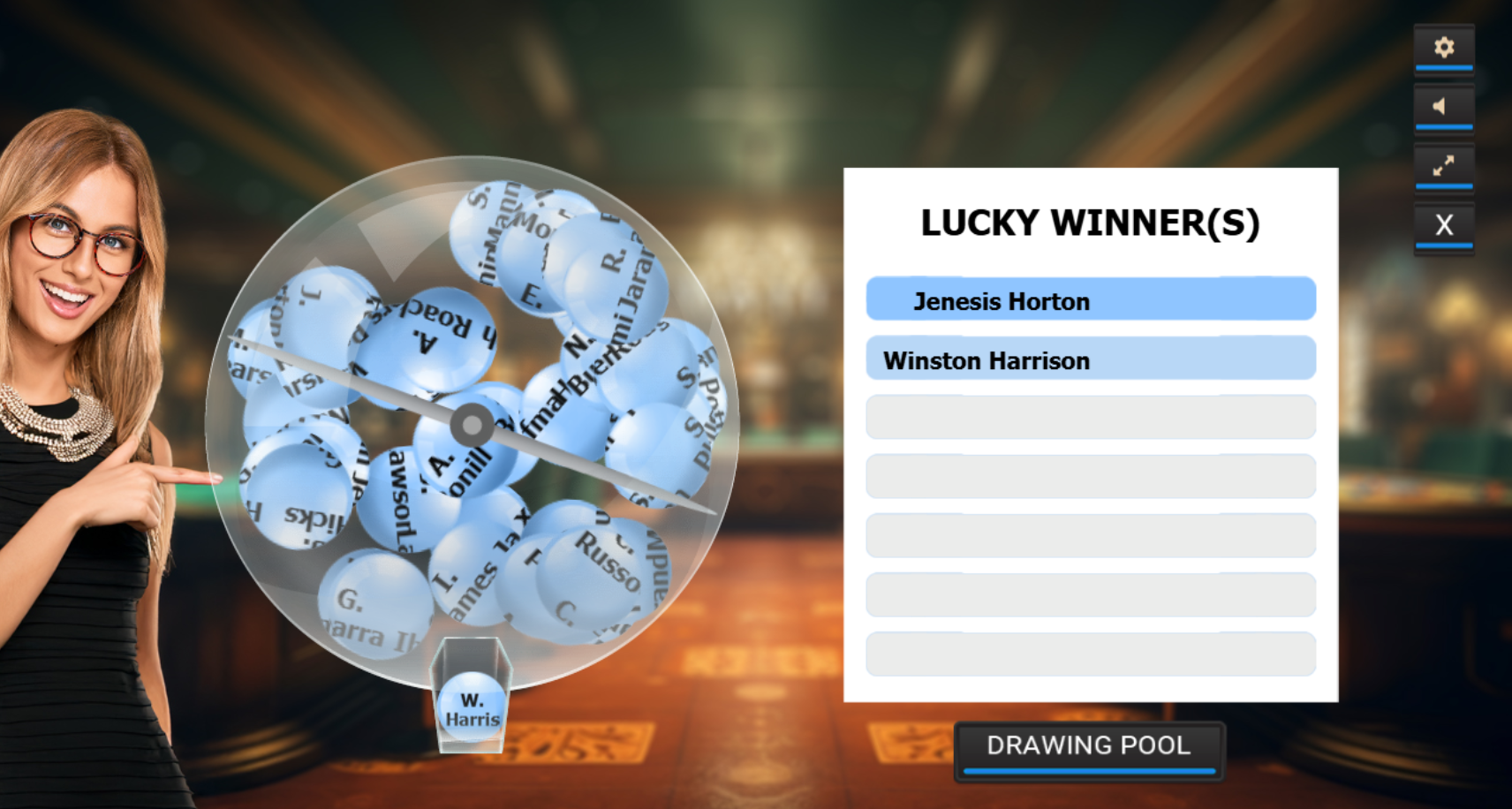
The Lottery Tool displays a ping-pong ball style drawing machine filled with your participant pool. Each ball carries a name. The machine tumbles and mixes the balls visually while players in the room watch the anticipation build — then draws the winning name and displays it prominently on the Lucky Winner(s) panel on the right side of the screen.
This format is ideal for:
- High-energy promotional nights — cash drawing events, prize giveaways, and holiday promotions where audience engagement is part of the experience.
- Multi-winner drawings — the tool supports drawing multiple winners in a single session, displaying each one as they're pulled.
- Lounge or event space broadcasts — anywhere a gathering of players can watch the drawing live on screen.
- Transparency events — when players want to see that the process is fair and random, watching names tumble in a visible machine builds trust.
Verifying the Participant Pool
Players often want to confirm they're actually in the drawing before it runs. The Lottery Tool includes a Drawing Pool button at the bottom of the screen. Clicking it opens a paginated, alphabetically sorted list of every eligible participant in the current bucket. This view is visible on-screen to anyone watching — including players in the room — and provides a transparent, verifiable record of who's eligible.
If a player questions whether they're included, direct them to a floor staff member who can pull up the Drawing Pool list and search for their name on the spot.
Reviewing Previous Winners
Every winner drawn — whether through the quick Pick Winners tool or the Lottery Tool — is permanently logged and accessible at any time. Click the Show Previous Winners icon on any drawing bucket row to open the full detail view.
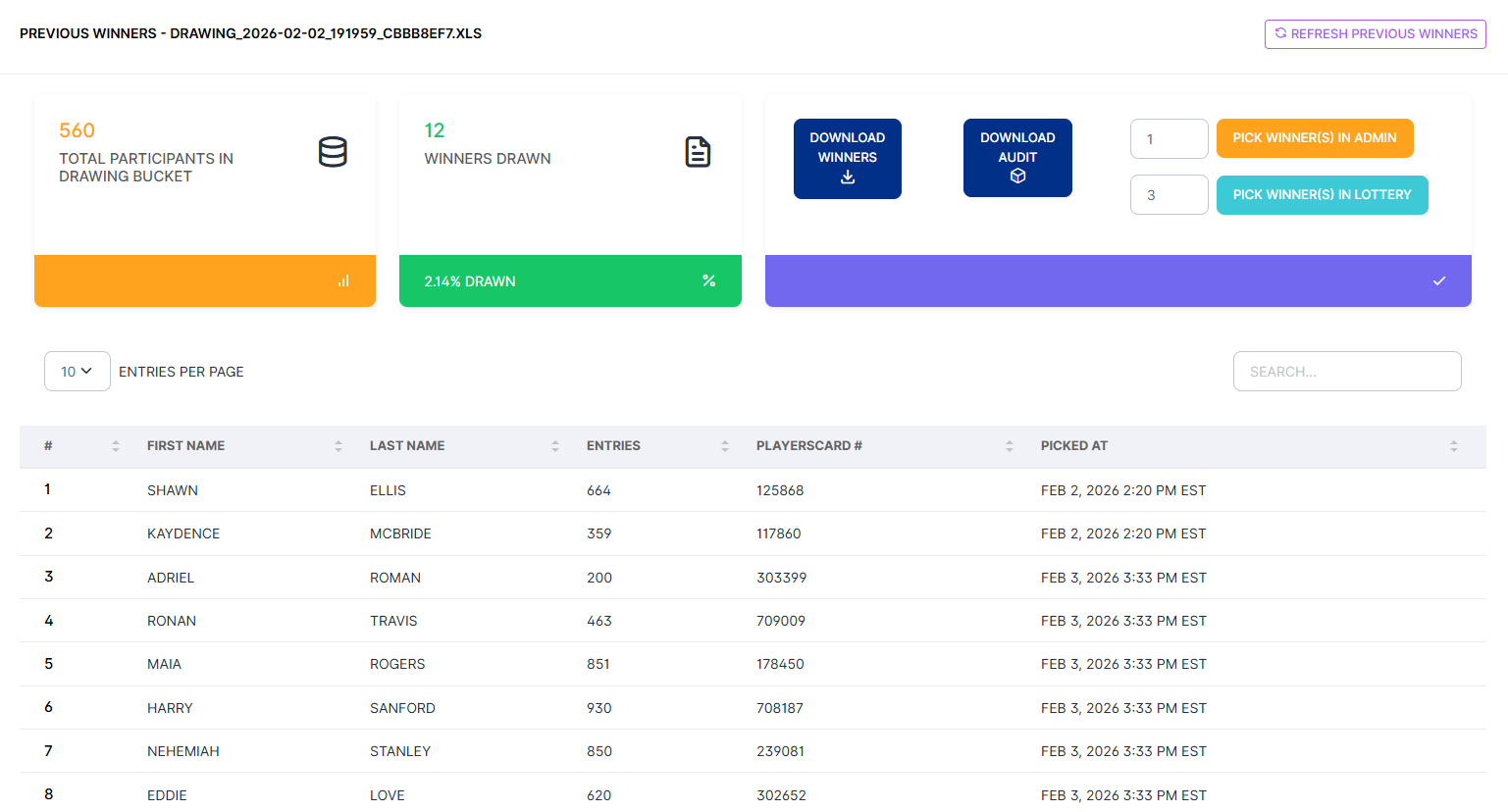
This view shows:
- Total Participants — The complete size of the drawing pool for this bucket.
- Winners Drawn — Total number of winners drawn so far, displayed alongside the percentage of the pool that represents (e.g., 12 winners / 2.14% drawn).
- Winners table — A searchable, paginated table listing each winner's first name, last name, number of entries, Loyalty Number, and the exact date and time they were drawn (with timezone). The table can be sorted by any column.
From this same view, you can also launch additional draws directly — either as a quick Pick Winner(s) in Admin draw or as a new Pick Winner(s) in Lottery broadcast — without returning to the main Drawing Buckets table.
Downloading & Exporting
Two export options are available from the Previous Winners view:
- Download Winners — Exports the complete winners list as a CSV file. Useful for prize fulfillment, follow-up communications, or regulatory documentation.
- Download Audit — Exports the full audit trail for this drawing bucket — every draw action, who performed it, and when. This is the file you'd submit for compliance review or dispute resolution.
Choosing the Right Tool
| Feature | Pick Winners | Lottery Tool |
|---|---|---|
| Display style | Popup / back-of-house | Full-screen broadcast |
| Cast to floor TV | — Not designed for it | ✓ Built for it |
| Animated drawing experience | — | ✓ Ping-ball machine |
| Countdown timer | ✓ | ✓ |
| View participant pool on screen | — | ✓ Drawing Pool button |
| Draw multiple winners at once | ✓ | ✓ |
| Best for | Quick, private, or admin-side draws | Live events with an audience watching |
Both tools draw from the same pool and log every result to the same audit trail — the choice is purely about presentation and whether you have an audience watching.
Using Your Own Drawing System
It's worth noting that Promo on Demand's built-in drawing tools are entirely optional. If your property already uses a dedicated drawing or player management system — whether that's a tool built into your casino management software, a third-party drawing platform, or your own established process — you are absolutely free to continue using it. There is no requirement to migrate your drawings into P.O.D.
In that workflow, your existing system handles the winner selection, and Promo on Demand handles the game experience that follows. Once your winners have been identified through whatever method your property uses, a floor host simply logs in as a frontend user, launches the appropriate game, and the promotion proceeds as normal. The two systems complement each other naturally — your trusted drawing process for the selection, and P.O.D. for the branded, engaging game moment that delivers the prize.
This flexibility means Promo on Demand integrates cleanly into your existing promotional workflow without requiring you to change the parts that are already working well for your team.
Need help setting up your first drawing, or questions about exporting results for compliance? — we're happy to walk through it with you.