
Promo on Demand uses two distinct user roles to separate the people who build and manage promotions from the people who run and participate in them. Getting this structure right from the start means cleaner operations, tighter access control, and no risk of floor staff accidentally modifying a live game configuration.
This article explains what each role can and cannot do, how to think about assigning them across your team, and how features like game assignment, date restrictions, and the drawings tool interact with each role.
No user limits. You can create as many Admin and Frontend user accounts as your organization needs — there is no cap on the number of users.
The Admin Role
Admin users are the managers and configurators of your P.O.D. account. They have full access to everything on the administrative side of the platform. Think of this as the role for your marketing team, promotion coordinators, and anyone responsible for building and overseeing the promotions themselves.
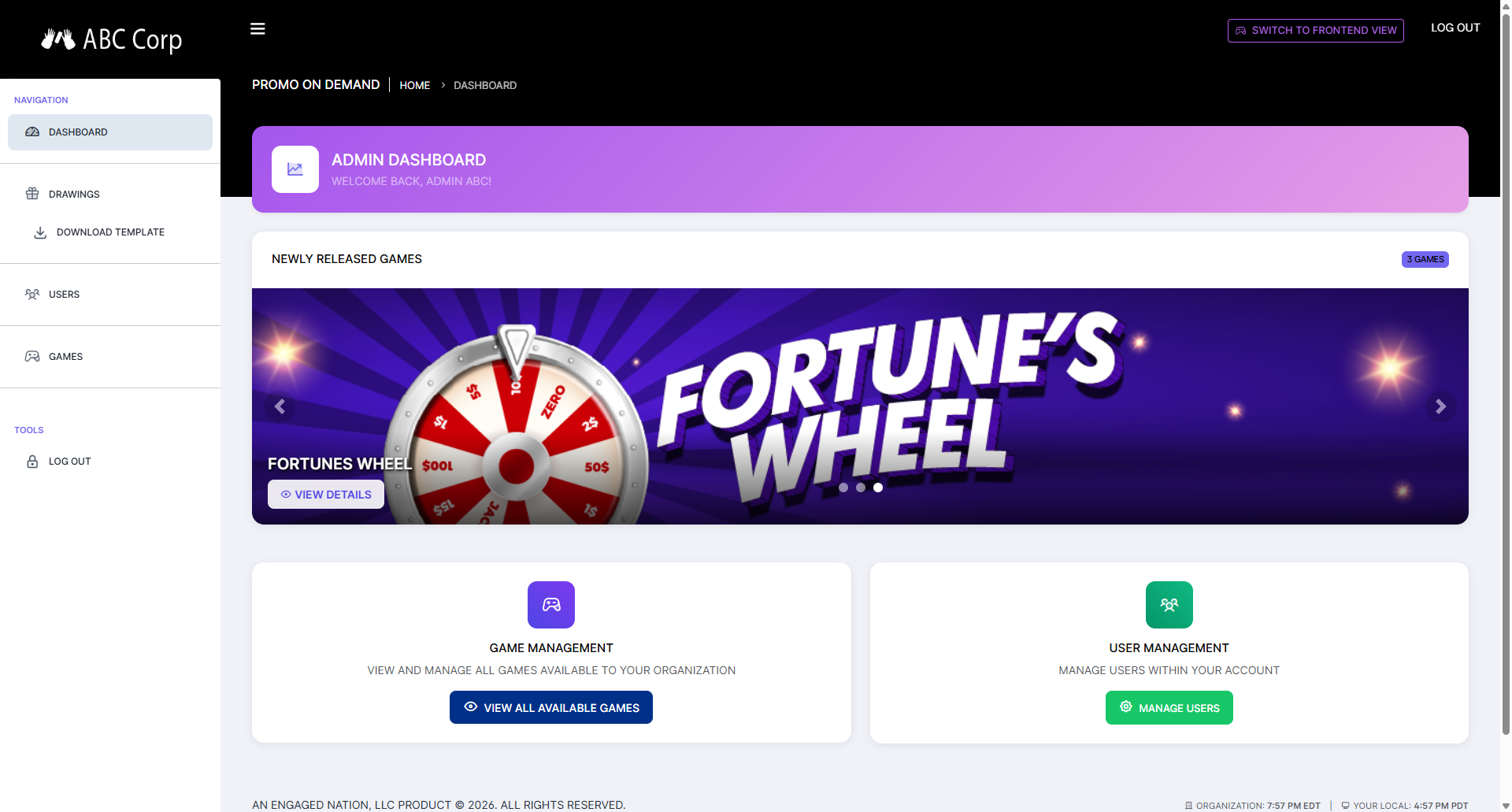
Admin users can:
- Create and manage all users — Add, edit, or remove both Admin and Frontend user accounts within their organization.
- Browse and customize games — Access the full game library, select themes, configure prize odds and labels, name and save game configurations.
- Control game access — Assign specific game configurations to specific frontend users, and set the date range during which each configuration is active.
- Create and manage drawings — Upload participant lists via .xls spreadsheet, creating new drawings for frontend staff to hold.
- View the dashboard and reports — Access session history, prize distribution summaries, and full audit logs for any time period.
- Switch to Frontend View — Preview exactly what frontend users see, without logging into a separate account, to verify the player experience before going live.
Who should be an Admin? Limit this role to people who genuinely need to build, manage and audit promotions — your Marketing/Promotions management, designated IT/Systems contacts, and Auditing Dept. Floor staff who only run the games during an event should be Frontend users, not Admins.
The Frontend Role
Frontend users are the operators of the P.O.D. games - the floor staff who run live promotions for the players to participate in. When a frontend user logs in, they see only a clean game lobby showing the promotions available to them. There are no admin menus, no configuration options, and no access to other users' data.
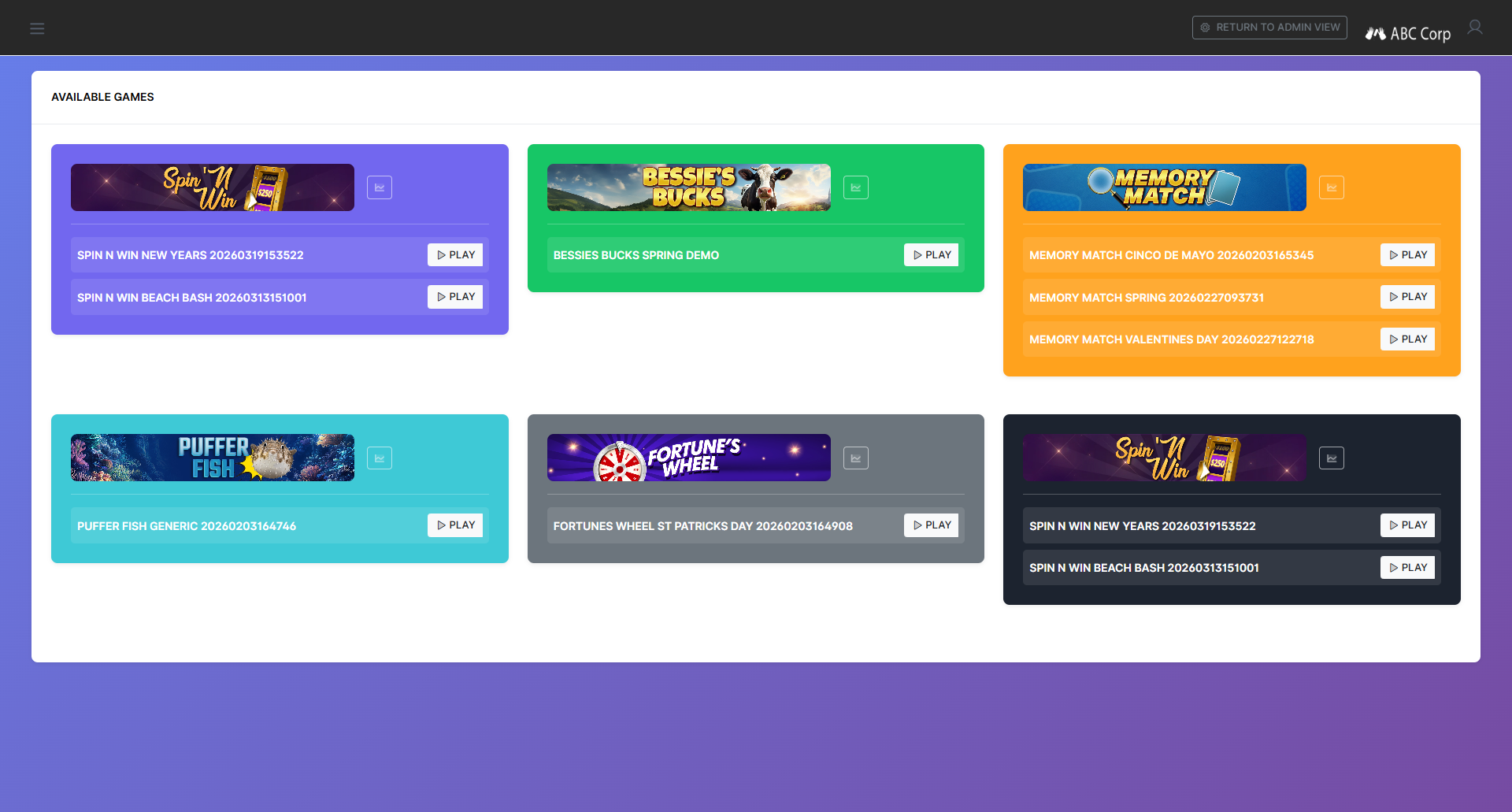
Frontend users can:
- View and manage assigned games — Each frontend user only sees the specific game configurations an admin has assigned to them. A user with no assigned games will see an empty lobby.
- Hold drawings — If an admin has created a drawing, frontend users can launch and execute it. They cannot create drawings or modify the uploaded participants for a drawing.
Frontend users cannot:
- Access the admin dashboard, user management, or game configuration screens.
- See any other user's account or data.
- Modify prizes, odds, themes or any game settings.
- Create, upload, or configure drawings.
Game Assignment & Date Restrictions
One of the most important features for frontend users is that game access is both user-specific and time-bound. When an admin saves a game configuration, they choose exactly which frontend users can see it — and when.
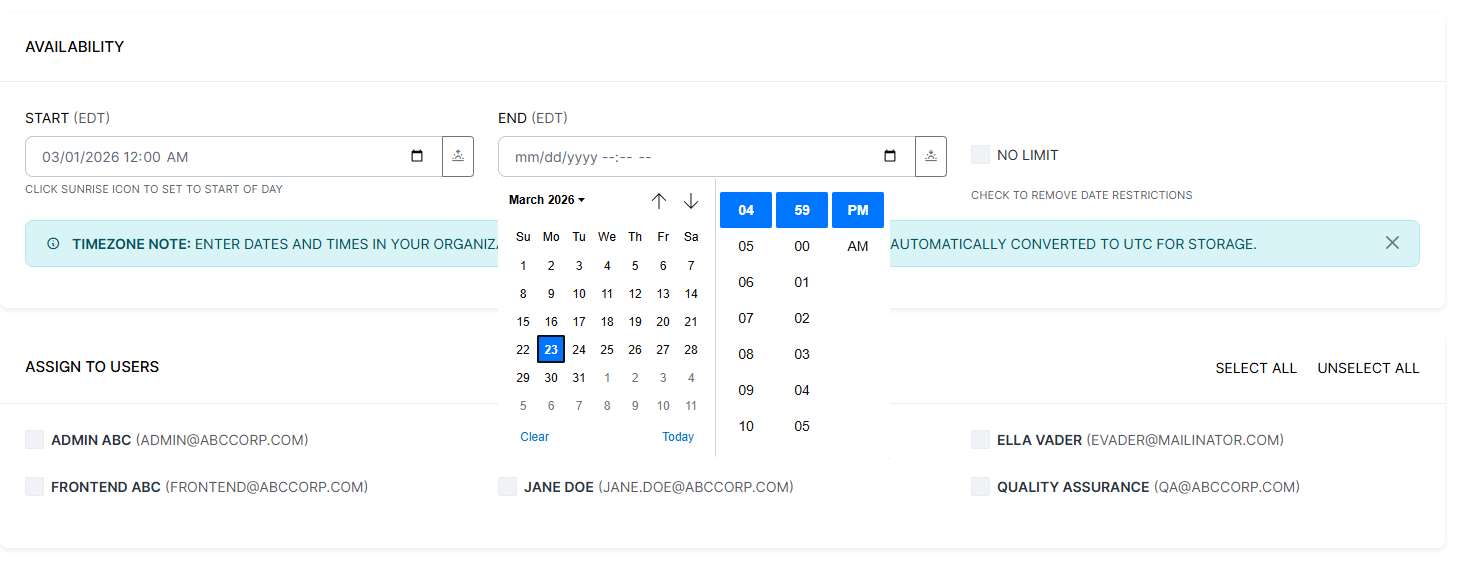
- User-specific access. An admin assigns games to each frontend user who needs access. A frontend user won't see games intended for a different frontend user. However, a single game may be assigned to multiple frontend users.
- Date range restrictions. Each configuration has optional start and end dates and times. Outside of this window, the game simply won't appear in the assigned user's lobby. This means you can pre-configure upcoming promotions weeks in advance, and they'll appear automatically when the start date arrives — and disappear when the promotion ends — without any manual intervention. If a given game can be played any day and time, simply check the NO LIMIT box in the Availability configurations.
- Multiple configurations per user. A single frontend user can have multiple game configurations assigned to them simultaneously — for example, a weekly drawing and a special holiday promotion running at the same time. Each will appear as a separate tile in their lobby.
The Drawings Tool & Role Responsibilities
Using the P.O.D. drawing tool to determine which guests will be invited to play in the promotion is strictly optional. You can draw participants using any method you choose, such as your CRM or a raffle drum of paper tickets.
Admin responsibilities Setup & configuration
Before a drawing can be held, an admin must:
- 1. Upload the player/participant list, ensuring that the file is in an xls. format.
- Name the file something appropriate for guests to view.
- Add a Drawing Name.
- Add notes (optional) that will not be viewable to guests.
Frontend user responsibilities Floor execution
At the appointed event date/time, a Frontend user will:
- Log in and click on the hamburger menu on the top left to access the available drawings
- Chooses either the Pick Winners or Lottery Tool and sets the number of winners to be drawn
- Launches the drawing on the floor TV (via cast or direct display)
- Runs the draw - the system selects winner(s) from the uploaded pool of participants.
- If a participant is drawn and is not present, the frontend user will have the option to redraw.
Frontend users cannot modify the player/participant list.
Recommended Team Structure
Most casino properties find a setup similar to this works well:
| Team Member | Recommended Role | Why |
|---|---|---|
| Marketing Manager/Promotions Coordinator or above | Admin | Configure games and drawings, sets prizes and odds, manages users and reviews results. |
| IT or Systems Contact | Admin | May need access for troubleshooting, user password resets or reporting. |
| Auditing | Admin | Runs audit reports |
| Floor Staff / Promotions Host | Frontend | Runs games and drawings during promotions. Sees only what games are assigned to them. No config access needed. |
Creating & Managing Users
All user management is done from the Users section of the admin navigation. Any admin can create, edit, or remove users within their organization.
- In the admin sidebar, click Users.
- Click the CREATE NEW USER button to add a new user.
- Enter user's name, email address and/or Username.
Team members without a company email address can log in with a Username, such as an Employee ID number.
- Choose their role - Admin or Frontend
- Set a temporary password. They will be forced to change it upon first login.
- Select an Avatar if desired
- Click Save. The account is active immediately.
To edit a user, including resetting their password or changing their role, find them in the Users list and click the edit button. To remove a user, click the edit button, and change the account status from Enabled to Disabled and click save.
After creating a frontend user, remember to assign them to at least one active game configuration. A newly created frontend user who logs in before being assigned to a game will see an empty lobby. Head to Games, select the appropriate game customization, and click the edit button to add a user to the selected game configuration, under the Assign to Users section.
Questions about structuring your team or need help deciding which role fits a specific person's responsibilities? Contact our team — we're happy to help you think it through.