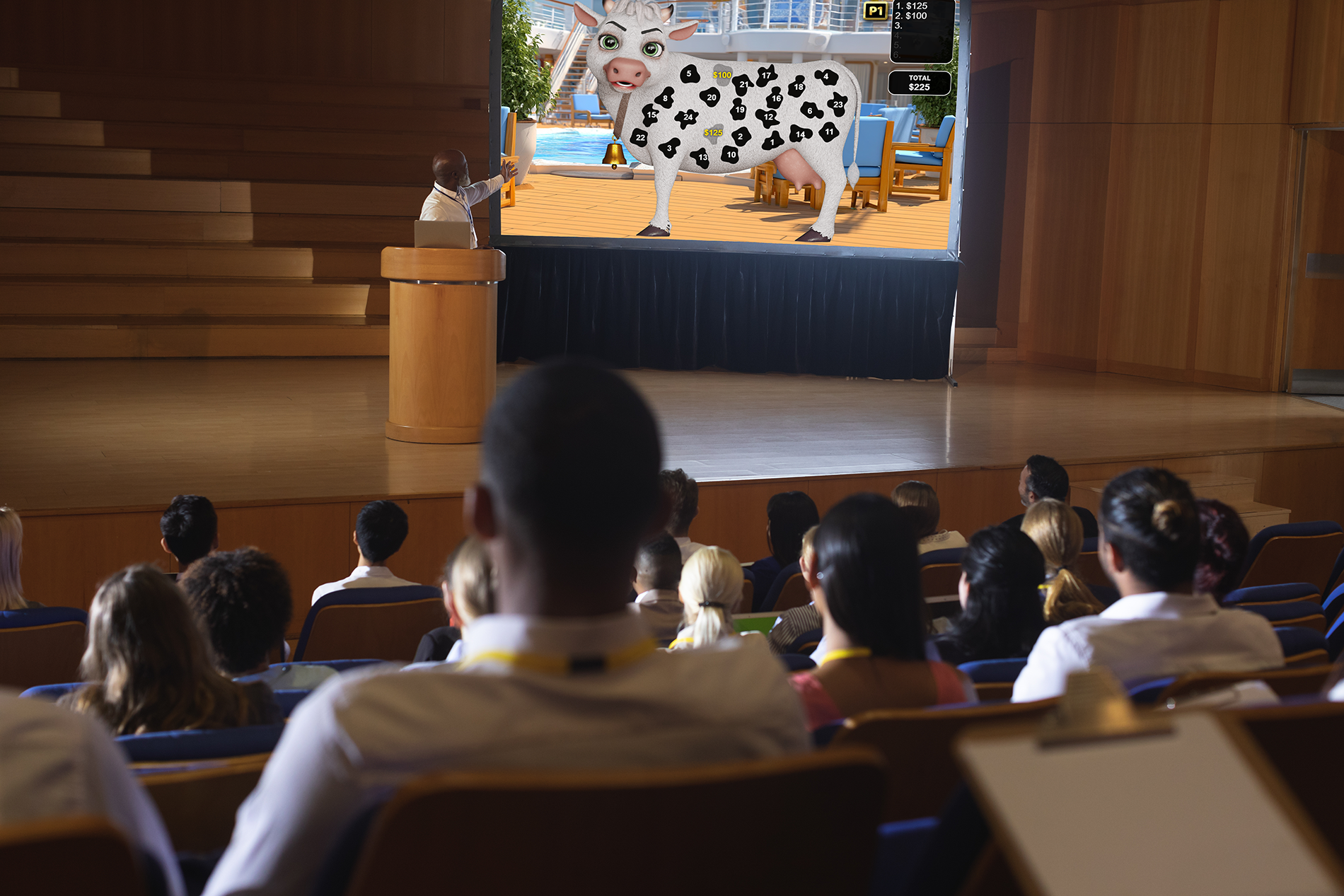
One of the most powerful aspects of Promo on Demand is that it requires no dedicated hardware on your floor. The game runs in a browser, and your existing TV displays become the stage. But getting it onto those screens cleanly — with no lag, no notifications popping up, and in the right orientation — is worth doing right.
This guide covers the four most reliable methods for casting P.O.D. to any TV on your property, from a quick wireless mirror to a permanent installation that's always ready to go. We'll also cover casino-specific tips to ensure a polished, professional experience every time.
Before you start: All methods require your source device and the display TV to be on the same network, or connected via HDMI. For wireless methods, use your casino's internal Wi-Fi — not a guest or public network — for the most reliable connection.
Method 1: Built-In Screen Mirroring
Every modern smartphone, tablet, and laptop has a native screen mirroring feature built in. This is the fastest way to get started — no apps, no accounts, just a few taps. Your floor staff can have P.O.D. on a TV in under a minute.
This method is ideal for promotions where a staff member walks the floor with a tablet and connects to different TVs on the fly. The entire screen is mirrored, so everything you see on the device appears on the TV in real time.
Android Devices Smart Cast / Smart View
Works with Android phones and tablets connected to any Miracast-compatible smart TV or Google TV.
- Connect your Android device to the same Wi-Fi network as the TV.
- Swipe down to open the Quick Settings panel, then tap Cast or Smart View.
- Select your TV from the list of available screens.
- Open Chrome and navigate to your P.O.D. player URL.
iPhone, iPad & MacBook AirPlay
AirPlay works with any Apple TV or AirPlay 2-compatible smart TV (most Samsung, LG, and Sony TVs from 2019 onward).
- Connect to the same Wi-Fi network as the TV.
- Swipe down from the top-right corner to open Control Center, then tap Screen Mirroring.
- Select your TV from the list. Enter a PIN if prompted.
- Open Safari or Chrome and navigate to your P.O.D. session URL.
Windows Laptop Wireless Display
Works with any Miracast-compatible TV or monitor. Most modern TVs support this without any extra hardware.
- Connect to the same Wi-Fi as the TV.
- Press Win + K to open the Cast panel, or go to Settings → System → Display → Connect to a wireless display.
- Select your TV from the device list.
- Open Chrome and navigate to the P.O.D. player URL.
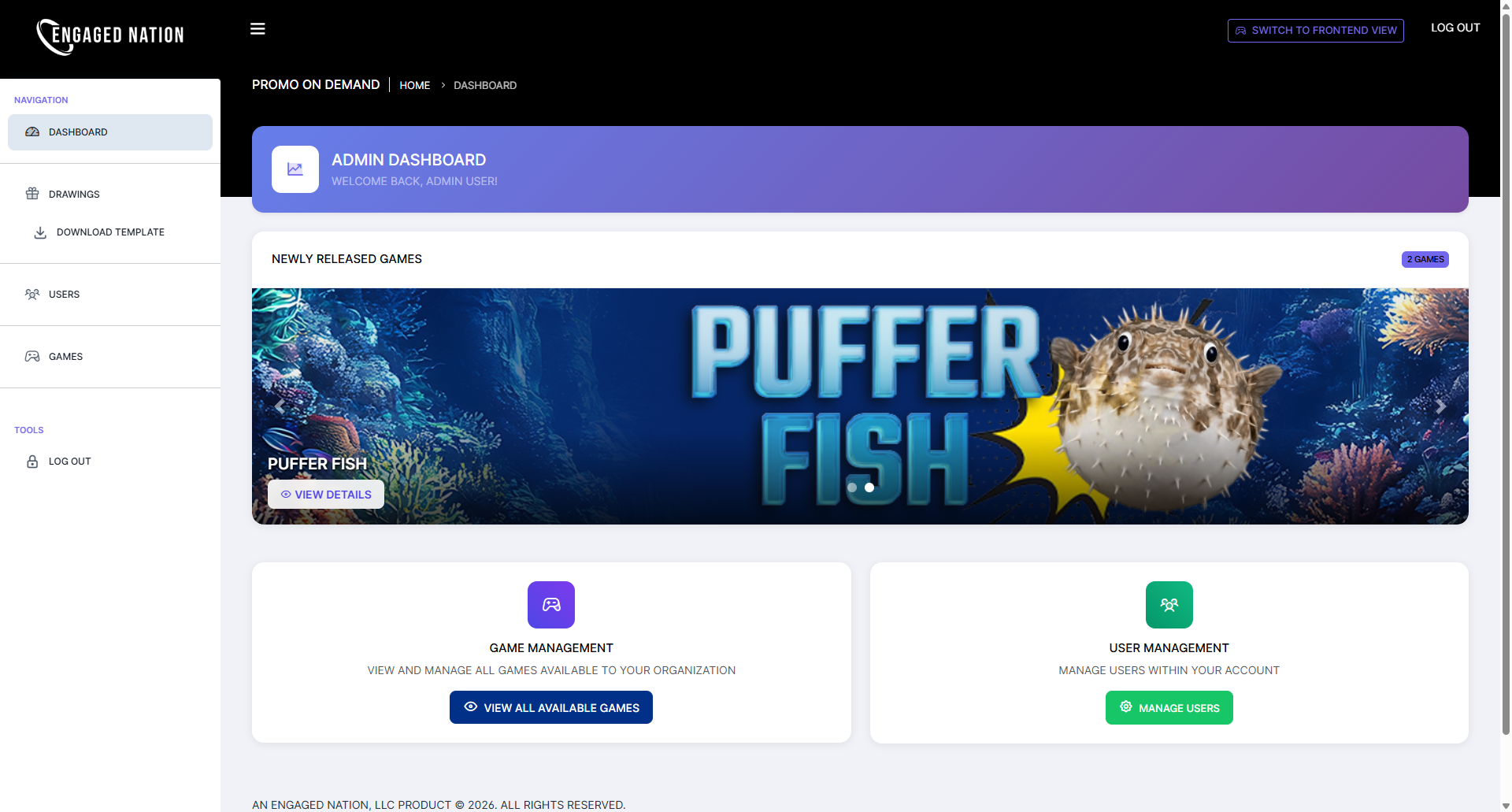
Method 2: Chrome Tab Casting
If you'd rather not share your entire screen — keeping your desktop icons, notifications, and other browser tabs private — Chrome's built-in tab casting is the better choice. It sends only the active tab to the TV, which creates a much cleaner presentation.
This method is perfect for staff members who use their computer for other tasks and want to keep the P.O.D. game window isolated on the floor TV. Compatible with any TV that has a Google Cast receiver: Chromecast devices, most Samsung, LG, and Sony smart TVs, Roku devices, Android TV, and select gaming consoles.
- Open Chrome on your computer and navigate to your P.O.D. player URL.
- Click the three-dot menu in the top-right corner of Chrome, then select Cast…
- In the Cast dialog, click the dropdown next to the device name and select Cast tab (rather than Cast screen).
- Select your TV from the list of available Cast devices.
Pro tip for a cleaner display: Before casting the Chrome tab, press F11 (Windows) or Control + Command + F (Mac) to put Chrome into fullscreen mode. The game will fill the TV completely with no browser chrome visible.
Method 3: HDMI Cable Connection
When wireless options aren't available — or when you need a completely lag-free, 100% reliable connection — a physical HDMI cable is the gold standard. This is the preferred method for permanent promotional display stations, back-of-house monitor setups, or high-traffic areas where wireless interference could be a concern.
Casino floors can have significant wireless congestion from thousands of gaming devices, player tracking systems, and security networks. An HDMI connection eliminates this entirely.
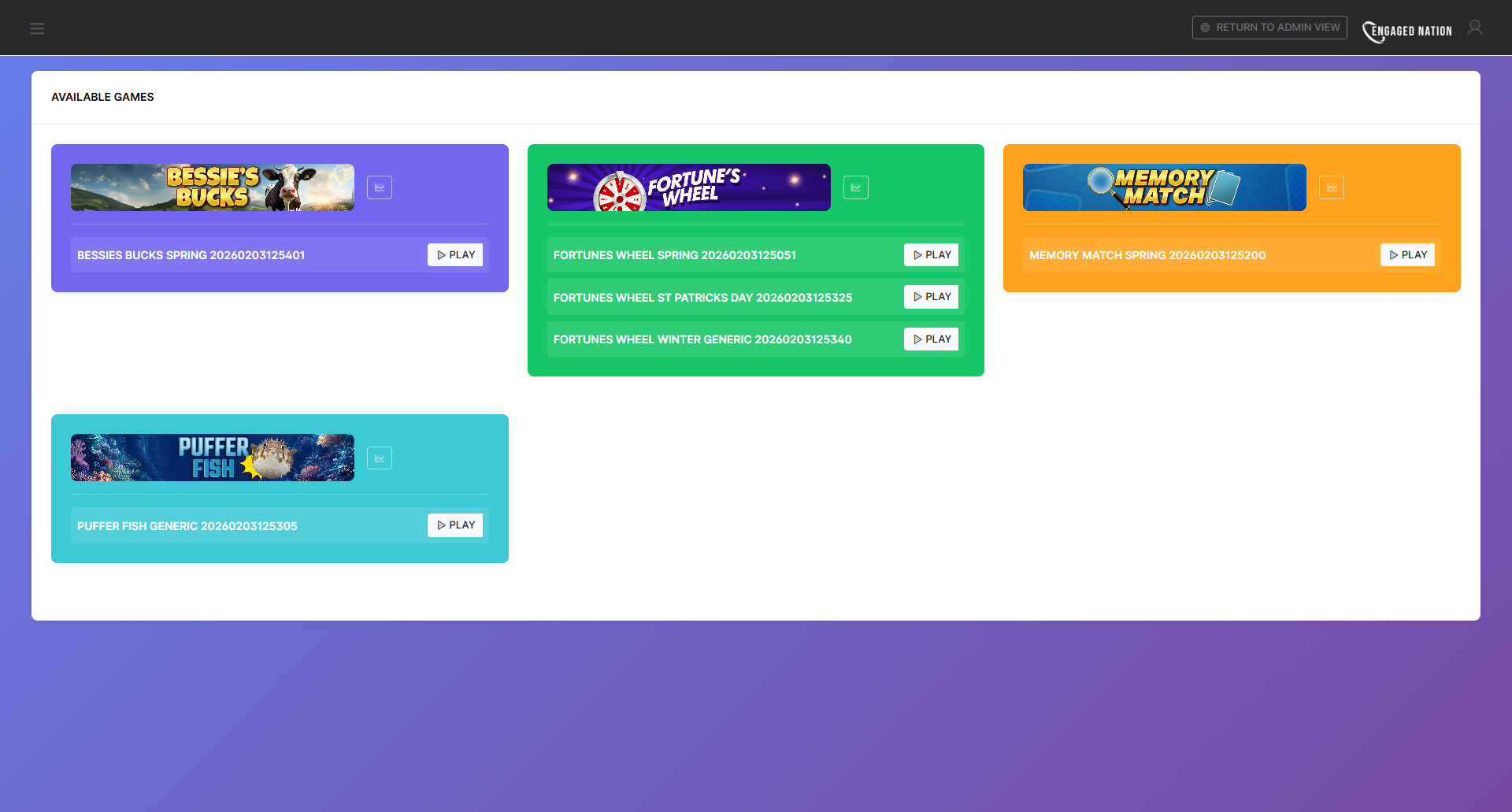
The cable requirements vary by device:
- Android phone/tablet: USB-C to HDMI adapter cable
- iPhone/iPad: Lightning Digital AV Adapter or USB-C to HDMI
- Windows laptop: HDMI, DisplayPort, or USB-C to HDMI adapter
- MacBook: USB-C/Thunderbolt to HDMI adapter
- Connect the HDMI cable between your device (with adapter if required) and the TV.
- On the TV, change the source/input to the HDMI port you used.
- Your device screen will appear on the TV. Open Chrome and navigate to your P.O.D. session URL.
For permanent promotional display stations, consider enabling Chrome Kiosk Mode. Launch Chrome with --kiosk and your P.O.D. URL to lock the browser to full screen, disable the address bar, and prevent staff from accidentally navigating away during a live promotion.
Method 4: Dedicated Casting Devices
For the cleanest, most permanent solution — a dedicated casting device plugged into each promotional TV is the recommended setup for high-volume properties. Devices like Google Chromecast, Amazon Fire Stick, or Roku Streaming Stick turn any HDMI-equipped TV into a smart display that's always ready to receive a cast.
This approach means your floor TVs are always promo-ready. Staff simply open P.O.D. on any device and cast with one tap — no cables to connect, no adapters to find.
See our other article about the j5create Cast Pro — a purpose-built casting device designed specifically for casino environments, with enhanced Wi-Fi performance, a ruggedized design, and a simplified casting workflow for floor staff. Learn more about the Cast Pro here.
- Plug a Chromecast (or equivalent device) into the HDMI port of your promotional TV and connect it to your internal Wi-Fi.
- On the casting device, ensure it's on the same network as the staff device running P.O.D.
- From Chrome on a staff device, open P.O.D. and use Cast → Cast tab to push the game to the TV.
- Alternatively, use the built-in screen mirroring on your device to mirror the full screen to the casting device.
- To end the session, simply stop casting from your device — the TV returns to its default state.
Casino-Specific Tips for a Flawless Display
Casino floors present unique technical environments. Here are the most important considerations for reliable, polished P.O.D. displays:
- Use internal Wi-Fi only. Never run P.O.D. over a guest or public network. Internal staff networks offer better bandwidth, lower latency, and more reliable connections.
- Check TV orientation. Most promotional TVs are landscape (horizontal), which is the default P.O.D. layout. Portrait (vertical) signage displays may require rotation settings.
- Disable screen sleep. On your casting device, turn off auto-lock and screen sleep settings while running an active promotion. This prevents the display from timing out mid-game.
- Mute notifications. Enable Do Not Disturb (or Focus Mode) on your casting device before going live. Incoming calls, messages, or app alerts can interrupt the display.
- Bookmark your P.O.D. URL. Create a dedicated browser bookmark (or home screen shortcut) for your property's P.O.D. player URL so staff can navigate to it instantly.
- Test before the promotion goes live. Do a dry run on the actual floor TV before inviting players. Check visibility from 10–15 feet away, confirm audio levels if applicable, and verify the full-screen layout looks correct.
Choosing the Right Method for Your Property
Here's a quick reference for selecting the best display method based on your situation:
- Quick, portable, one-off promotion: Screen Mirroring (Method 1) — fast to connect, easy for floor staff
- Staff member at a desk running promotions: Chrome Tab Cast (Method 2) — keeps your desktop private
- High-traffic area or noisy wireless environment: HDMI Cable (Method 3) — zero lag, 100% reliable
- Permanent promotional TV installation: Dedicated Casting Device (Method 4) — always ready, no cables to manage
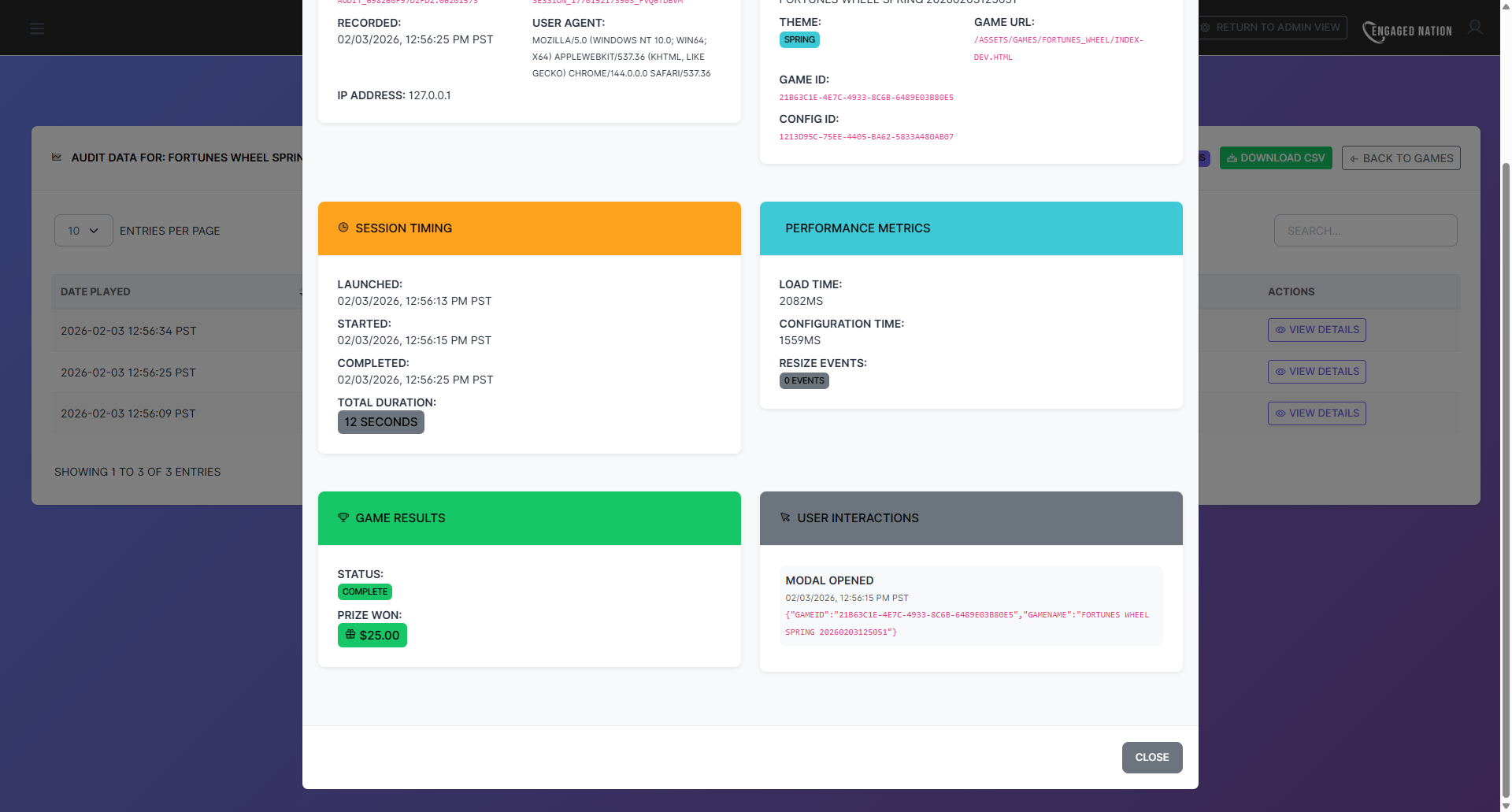
Regardless of the method you choose, every game session is logged in your P.O.D. dashboard with a full audit trail. How you choose to display it has no bearing on what gets recorded — the only difference is the experience you create for your players on the floor.
Questions about your specific setup? Contact our team — we're happy to walk through the best configuration for your property.