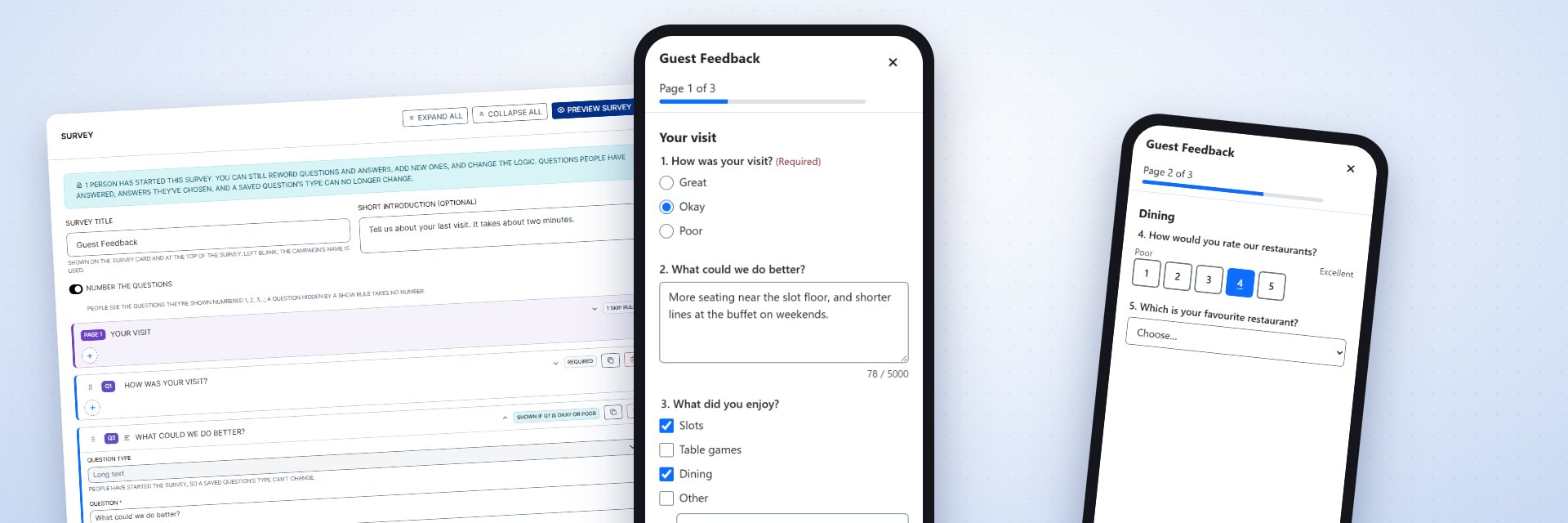
Survey on Demand is a campaign type inside Promo on Demand's Campaign Mode that asks questions instead of playing a game. You build a multi-page survey in the campaign wizard. Your customers register through the campaign's usual form, answer it on their own phone, tablet or computer, and can win a prize for finishing it.
The survey adapts to each customer. A follow-up question appears only when it applies, and a page that doesn't apply is skipped. Customers answer only what is relevant to them, and you get cleaner answers.
The pitch in one line: Ask your customers what you want to know, show each of them only the questions that apply, and reward them for finishing, with no prize, a prize drawn by odds, or a prize you chose for each person.
What Is a Survey on Demand Campaign?
It is a campaign like any other: it has dates, a branded campaign page, open or closed participation, and the same registration form, with first name, last name, email, phone, loyalty number and any custom fields you add. The survey never asks again for what registration already collected.
Choose Survey on Demand Campaign as the campaign type in Step 1 of the campaign wizard. Step 3 becomes Survey & Reward, where you build the survey and choose its reward.
Building Your Survey
The builder is one list of questions, with page breaks between pages. Add a question or a page break at the end, or insert one anywhere with the + between items. Drag items to reorder them, or move them with the keyboard. Each question can be duplicated or deleted. A survey can have up to 20 pages and 100 questions.
Seven question types
- Short text: one line, with an optional check on what is typed (see below)
- Long text: a paragraph, up to 5,000 characters
- Radio buttons: choose one answer, with an optional "Other (please specify)"
- Multiple choice: choose any number of answers, with an optional minimum and maximum, and "Other"
- Dropdown: choose one from a list. Ready-made lists fill it in one click: US states, countries, Yes/No, and a satisfaction scale
- Rating scale: a row of numbered points, with a label at each end ("Poor" to "Excellent")
- Date: a date, with an optional earliest date, latest date, or "no dates in the future"
Any question can be required. Questions can be numbered for the customer, and the numbers count only the questions each customer actually sees.
Checking short answers
A short-text question can check what is typed before the customer moves on: a whole number, a positive whole number, a decimal, a dollar amount, letters and numbers, an email address, a phone number (with its country code), a US ZIP code, a website address, or an exact number of digits. Number checks can have a minimum and a maximum. A customer who types something that doesn't fit is told what to fix, next to the question.
Show and Skip Logic
Show rules On a question
"Show this question only if an earlier question is one of these answers." For example, ask "What could we do better?" only of customers who rated their visit Okay or Poor.
Skip rules On a page
"After this page, if a question is one of these answers, go to a later page or straight to the end." For example, send customers who never dine with you past the restaurant questions.
Rules can use radio buttons, multiple choice, dropdowns and ratings, and skips only go forward. The builder checks the logic as you work. A rule that points at a deleted question, or goes backwards, is marked on its card, and the campaign can't be saved until it is fixed. A page that no answers lead to gets a warning.
Preview Every Path
Preview Survey opens the survey exactly as your customers will see it, straight from the builder, saved or not. A side panel shows the path you are on. Restart and Jump to page let you try every route through the logic. Preview records nothing. To try the finished campaign page itself, use Simulator Mode: the survey runs on the simulated date and saves nothing.
What Your Customers See
After registering, a customer sees a survey card on the campaign page with a Start Survey button. The first time, the survey opens by itself.
- One page at a time, in a window that fills the screen on a phone, with a bar at the top showing which page they are on and how many remain.
- Next saves the page. Back returns to the page before.
- Leaving halfway is safe. The card then says Continue Survey, and the survey reopens on the same page, even days later.
- One response per customer. Once finished, the survey can't be taken again. The card offers View My Answers, a read-only copy of what they said.
- A thank-you message you write ("Thank you for taking our survey" until you change it), then their prize, if they won one. The prize is also added under Your Prizes on the campaign page.
- An optional redirect. After finishing, customers can be sent to a web address of yours (it must start with
https://). The thank-you message counts down 15 seconds, with Stay on this page and Go now buttons.
If the campaign offers a language selector, the survey's questions are translated with the rest of the page, but what customers type is never sent to be translated.
Rewards for Finishing
Choose the reward in Step 3's Reward card. The prize is decided by our servers the moment a customer presses Submit, and only once, however many times the button is pressed.
No Prize
The survey is its own reward. Every completion is still recorded on the Play Audit tab.
Variable Odds Up to 12 prizes
Each prize has a title, an optional description and its odds, set with sliders that must add up to exactly 100%, as on the game pages. A row can be a losing outcome: its title, and its description if it has one, are what the customer is told ("Better luck next time"), and it awards nothing.
One-to-One A prize per person
Upload a reward matrix (XLSX or CSV) naming the prize each customer gets, matched by loyalty number, or by name and email. Anyone the matrix doesn't name gets the default prize you set. Each matrix row is used once.
Prizes won appear on the Play Audit tab, where you can mark them received, as for every game.
Reading the Answers
On the campaign's Campaign Info tab, Survey Details sums up the survey: its pages, questions, logic, reward, and how many customers have started and finished it.
One customer's answers
On the Participants tab, open a customer's menu and choose View Survey Answers. Their answers are shown page by page, each question with its number, together with whether they finished, when, and what they won. A question the logic hid says "Not shown", one they left blank says "No answer", and a page they skipped is marked as skipped.
Everyone's answers
Download Survey Answers, on the Participants tab, prepares a CSV file with one row for each customer who started the survey, finished or not:
- their registration details, including your custom fields;
- whether they finished, when they started and finished (in your property's time zone), and the prize they won;
- one column per question, headed with its number and wording, for example "Q4. How would you rate our restaurants?";
- multiple-choice answers joined with semicolons, "Other: …" for an Other answer, and dates as YYYY-MM-DD, so a CRM can import them.
Opening the file in Excel: Excel drops leading zeros from anything that looks like a number, so a ZIP code like 02134 becomes 2134. To keep them, import the file with Data → From Text/CSV and set those columns to Text.
Representatives can read every customer's answers and download the file too. See User Roles & Permissions.
Changing a Survey After It Starts
Answers are kept by question, not by wording, so you can keep improving a survey once customers have started it:
- Allowed: rewording questions, answers, page titles and the thank-you message; adding questions, answers and pages; changing the logic and the redirect; changing the reward, which applies to everyone who finishes from then on.
- Not allowed: deleting a question, answer or page that already has answers, and changing a question's type. The builder says so in a banner, and rewording is always possible instead.
While a campaign is live, a change to its survey or reward is saved only once it is complete. Customers never meet a half-finished survey, or a reward that is still being set up.
Privacy
Answers are kept with the campaign's other records. Two years after a campaign ends, what customers typed is removed, together with their names and contact details. The choices they picked are kept without any name attached, so totals still add up.
Get Started
Open Campaigns in the Admin Tool, start a new campaign, and choose Survey on Demand Campaign. New to campaigns? Start with Campaigns: Empower Your Customers to Play on Their Own Devices, or for help planning your first survey.