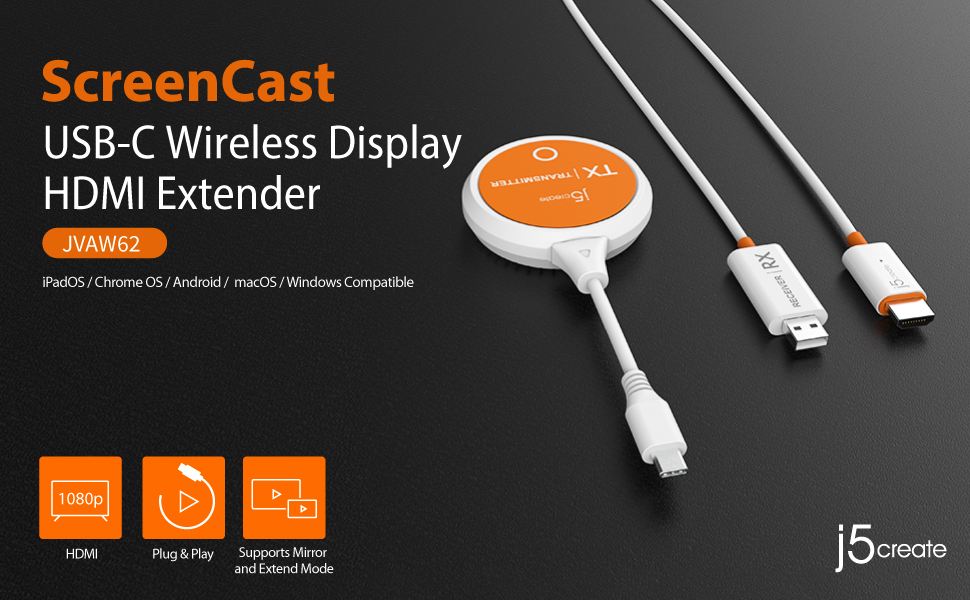
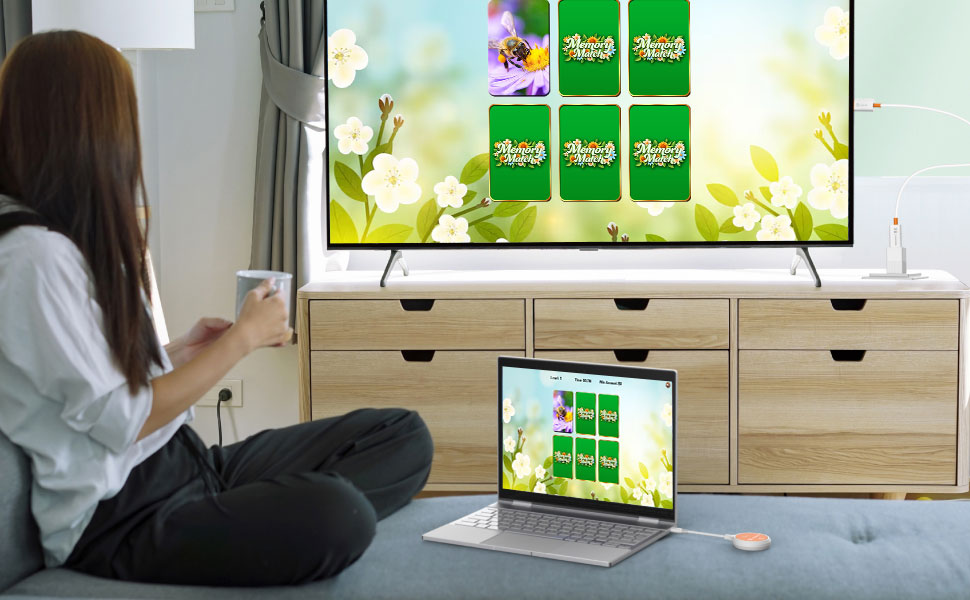
Ask any of our existing casino partners what hardware they use to get Promo on Demand onto a floor TV, and a significant number will name the same device: the j5create ScreenCast. It's a two-piece wireless display kit — a small transmitter that plugs into your tablet or laptop, and a receiver dongle that plugs into any HDMI port on your TV. Plug both in, wait two seconds, and you're casting. No Wi-Fi network. No app. No account. No configuration.
We've seen every casting method in use across our customer base — AirPlay, Chromecast, HDMI cables, Fire Sticks — and the ScreenCast consistently delivers the smoothest experience for floor staff who need reliable, repeatable results with minimal technical knowledge. This guide explains what it is, how it works, which model to pick, and how to get the most out of it when running P.O.D. promotions.
Our recommendation: The JVAW62 (USB-C, 1080p, $99.99) is the best fit for most casinos using iPads or modern Windows laptops. If your property uses a mix of device types, the JVAW76 (app-based casting, 4K, $74.99) is the more flexible choice.
Why We Recommend the ScreenCast for P.O.D.
Promo on Demand runs entirely in a browser — which means anything that can mirror a screen or cast a browser tab can display it on a TV. The challenge isn't getting it to work; it's getting it to work reliably, without technical hiccups in front of players on the floor.
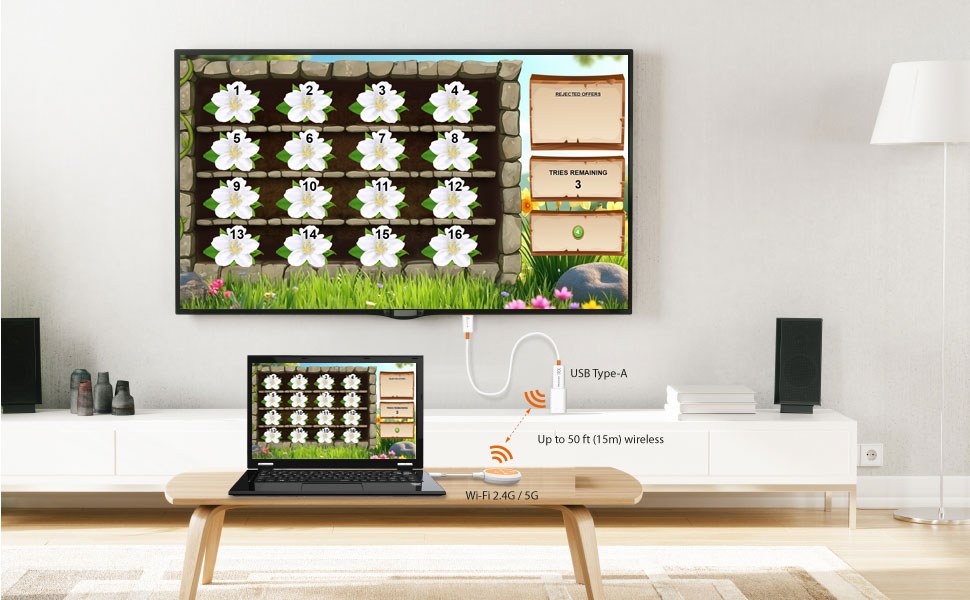
The j5create ScreenCast solves this by creating a direct peer-to-peer wireless link between your device and the TV — bypassing your casino's Wi-Fi network entirely. This matters more than it might seem. Casino floors are some of the most RF-congested environments in existence: hundreds of slot machines with wireless connections, player tracking systems, security cameras, guest Wi-Fi, and staff networks all competing for the same spectrum. The ScreenCast side-steps all of it.
- No network dependency. The transmitter and receiver pair directly to each other — your casino Wi-Fi doesn't need to be involved at all.
- Instant setup. Staff who aren't technical can connect it in under five seconds. Plug the receiver into the TV, plug the transmitter into the tablet — done.
- No software to install. There's no app, no driver, no account. It works the moment both pieces are plugged in.
- Works with any HDMI TV. Every TV on a casino floor has an HDMI port. No smart TV features required.
- Portable. The entire kit fits in a shirt pocket. Staff can carry it and use it at any promotional station, then move it to another TV without any reconfiguration.
How the ScreenCast Works
The kit consists of two components that work as a matched pair:
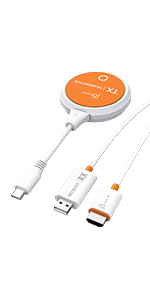
TX — The Transmitter Connects to your device
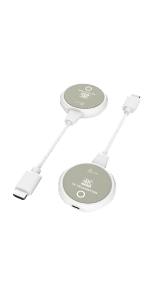
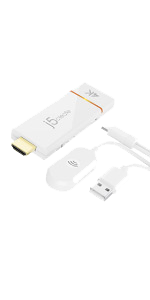
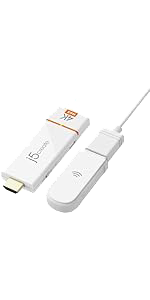
A small circular puck that plugs into your tablet or laptop's USB-C port (on the JVAW62 and JVAW75 models). It reads the video signal directly from the device's DisplayPort output, so nothing is streaming over the internet or your internal network. The JVAW76 and JVAW76MAX models skip the transmitter entirely — your device casts to the receiver using AirPlay, Miracast, or Google Cast, the same way you'd cast to an Apple TV or Chromecast.
RX — The Receiver Connects to your TV
A slim HDMI dongle that plugs directly into any HDMI port on your floor TV. It receives the wireless signal from the transmitter and outputs it as a standard HDMI video signal — no smart TV features, no apps, no network. Power comes from the TV's USB port or a small USB adapter included in the box.
Device Compatibility
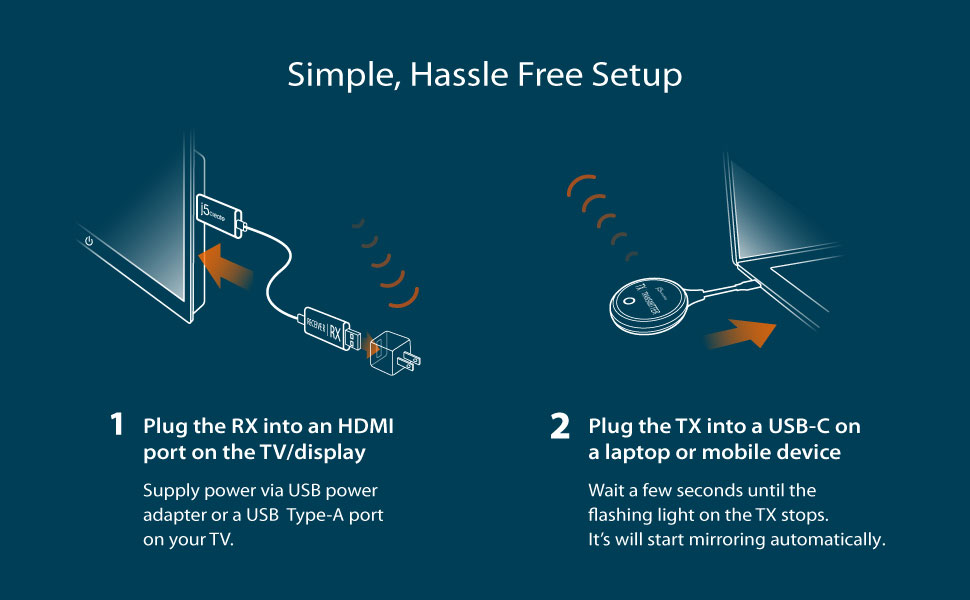
For the USB-C transmitter models (JVAW62, JVAW75), your device needs a USB-C port that supports DisplayPort Alternate Mode. This is standard on:
- iPad Pro (all USB-C models, 2018 and later) and iPad Air (M1/M2)
- MacBook and MacBook Pro (all models with Thunderbolt/USB-C)
- Windows laptops with a USB-C/Thunderbolt port (Dell, HP, Lenovo, Surface, etc.)
- Android tablets and phones with USB-C DisplayPort Alt Mode support
- Chromebooks with USB-C
For the app-based models (JVAW76, JVAW76MAX), any device that supports AirPlay, Miracast, or Google Cast works — including older iPads, iPhones, Windows laptops, and Android devices without DisplayPort Alt Mode.
Model Comparison
j5create offers five ScreenCast configurations. Here's how they break down, so you can pick the right one for your property:
JVAW60

|
JVAW62 Recommended
|
JVAW75
|
JVAW76
|
JVAW76MAX
|
|
|---|---|---|---|---|---|
| Connection Type | USB-A Transmitter | USB-C Transmitter | USB-C Transmitter | Software casting (AirPlay / Miracast) | Software casting (AirPlay / Miracast) |
| Max Resolution | 1080p | 1080p Full HD | 4K | 4K | 4K (upscaled) |
| Wireless Range | Up to 328 ft | 50 ft | 100 ft | 50 ft | 50 ft |
| Casting Method | Direct TX/RX pairing | Direct TX/RX pairing | Direct TX/RX pairing | AirPlay / Miracast / Chromecast | AirPlay / Miracast / Chromecast |
| Price | $79.99 | $99.99 | $104.99 | $74.99 | $99.99 |
| Best For | Entry-level; older laptops with USB-A only | iPads, MacBooks, modern Windows laptops — most casino setups | 4K TVs where sharper display quality is a priority | Mixed device environments; any device with AirPlay or Miracast | Multi-display properties; adds admin gateway & PIN protection |
Not sure which model your USB-C port supports? Look up your tablet or laptop model and search for "DisplayPort Alt Mode" in its specs. All iPad Pro models from 2018 onward and the majority of business-class Windows laptops (Dell Latitude, HP EliteBook, Lenovo ThinkPad, Microsoft Surface) support it. If you're still unsure, the JVAW76 is your safest option — it uses AirPlay and Miracast instead, which work on virtually any modern device.
JVAW62 — Our Primary Recommendation
The JVAW62 is the model we most commonly recommend to Promo on Demand customers. It uses a direct USB-C connection for the transmitter — your device doesn't need to "connect" to anything wirelessly on its end, which means no pairing steps, no passphrase, no delay. Plug the TX puck into your iPad or laptop and mirroring starts within a couple of seconds.
The 1080p output is more than sufficient for P.O.D. game displays on casino floor TVs (most of which are viewed from 6–15 feet away), and the dual-band 2.4G/5G link between the TX and RX is rock-solid even in congested RF environments. HDCP 1.4 compliance means DRM-protected content streams without issue.
JVAW76 / JVAW76MAX — App-Based Casting
If your property uses a mix of device types — some staff on iPads, some on Windows laptops, some on Android tablets — the JVAW76 is worth considering. Without a USB-C transmitter in the kit, any device can cast to it using its native screen mirroring (AirPlay on Apple, Miracast on Windows/Android, or Google Cast on Chromebooks).
The JVAW76MAX adds an admin gateway password and Miracast PIN protection — useful if you want to restrict which devices can cast to a given TV. For properties with multiple promotional displays, this lets you prevent staff at Station A from accidentally connecting to the TV at Station B.
Using the ScreenCast with Promo on Demand
Once the ScreenCast is installed and paired, getting P.O.D. onto a floor TV is a straightforward process your staff can do in under a minute:
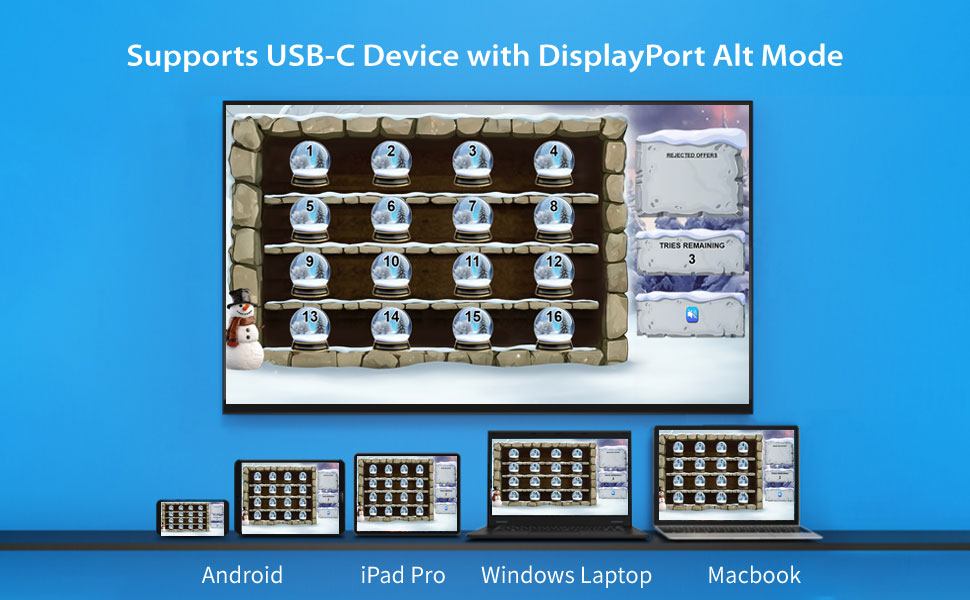
- Prepare the TV. Plug the RX receiver into the TV's HDMI port and power it via the TV's USB port or the included USB power adapter. Switch the TV's input to the HDMI channel where the receiver is connected.
- Connect your device. Plug the TX transmitter into your iPad or laptop's USB-C port. The status light will flash briefly, then stay solid — mirroring begins automatically. (For JVAW76/76MAX, use your device's AirPlay or Miracast menu to connect to the ScreenCast receiver.)
- Open Chrome or Safari. Navigate to your property's Promo on Demand URL. Your staff should have this bookmarked on the device.
- Log in and select your game. Sign in to P.O.D. as a frontend user or admin, select the promotion you want to run, and launch the game.
- Go fullscreen. On iPad, tap the fullscreen icon in Safari. On a laptop, press F11 (Windows) or Control+Command+F (Mac) in Chrome to remove the browser chrome and fill the TV with the game display.
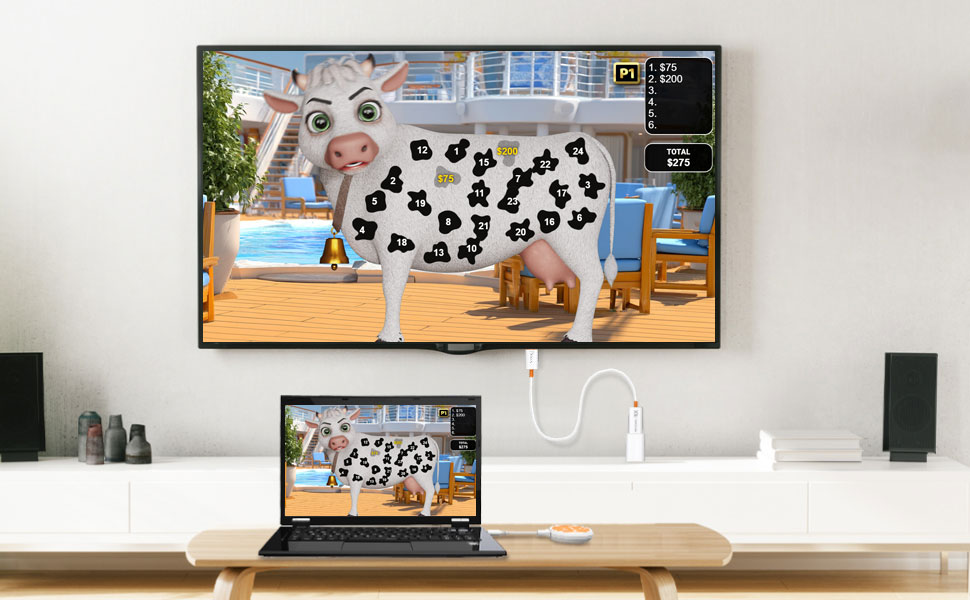
- You're live. The game is now visible on the floor TV. Staff can operate it from the tablet or laptop while players interact from the floor.
Tips for Casino Environments
A few practical notes from casinos already running this setup successfully:
- Pre-pair a dedicated kit per TV. The TX and RX remember each other. If you designate one kit per promotional TV, staff never have to re-pair — they just grab the transmitter, plug it in, and it connects to its paired receiver automatically.
- Use the 5GHz band. The ScreenCast supports dual-band 2.4G and 5G. On congested casino floors, 5GHz is significantly less crowded. Most ScreenCast receivers default to 5GHz when available — leave this setting as-is.
- Keep the receiver powered at all times. Power the RX from the TV's USB port so it's always on when the TV is on. This means staff can connect any time without waiting for the receiver to boot.
- Disable auto-lock on your casting device. Set the iPad or laptop's screen sleep to "Never" while running a P.O.D. promotion. A device that locks mid-game will interrupt the display.
- Enable Do Not Disturb. On iPad, enable Focus or DND mode before going live. Incoming iMessage notifications and app alerts will otherwise appear on the floor TV during a promotion.
- The 50-foot range is real, but walls cost you. Rated at 50 feet in open space, the ScreenCast performs well across most casino floor spans. Heavy concrete walls or metal shelving directly between the TX and RX can reduce range — keep line-of-sight where possible.
- Store the TX with the device it's paired to. Label the transmitter and the tablet it belongs to. While you can swap transmitters, having a dedicated pair per device ensures staff can always trust the setup will work on the first try.
Where to Purchase
The j5create ScreenCast lineup is widely available and ships quickly from major retailers:
- Amazon — All models available with Prime shipping. Search "j5create ScreenCast JVAW62" for the recommended model.
- Best Buy — In-store and online. Good option if you need a unit same-day for an upcoming promotion.
- j5create.com — Direct from the manufacturer. Ships from the US. Useful for bulk orders.
- B&H Photo, Adorama, Micro Center — Good sources for multi-unit orders at volume pricing.
For multi-property organizations, we'd recommend stocking at least one spare TX per property. The transmitters are the piece the staff touches most, and having a backup on hand means a single misplaced puck never derails a promotion night.
Questions about setting up this hardware at your property or determining the appropriate model for your specific devices should be directed to your internal IT team. Your IT team is a valuable resource for your organization’s technology needs and should be consulted to ensure alignment with your company’s policies, security requirements, and regulatory guidelines.