
A promotion that looks like it was designed for your floor — not a generic template — is one that gets players to stop, look, and engage. Promo on Demand gives you a full suite of theme tools to make that happen: a curated library of seasonal and holiday themes, per-game prize image customization, and a direct path to fully custom-branded graphics when you want something that's uniquely yours.
This guide walks you through every layer of the theming system, from selecting a ready-made theme in seconds to requesting a completely custom design built for your property.
Where to Find Game Themes
Themes are managed inside the Game Customization page for each individual game. To access it:
- From the admin sidebar, click Games to open your Game Management page.
- Locate the game you want to customize and click the Customize Game button.
- On the Game Customization page, look for the Available Themes section — typically displayed as a list or panel near the top of the configuration area.
Every game in your library has its own independent theme selection, so you can run a summer beach theme on one game and a Halloween theme on another simultaneously — perfect for properties running overlapping promotions.
The Available Themes List
The Available Themes section shows every theme currently built for that game as a scrollable list. Each row displays the theme name alongside two action buttons.
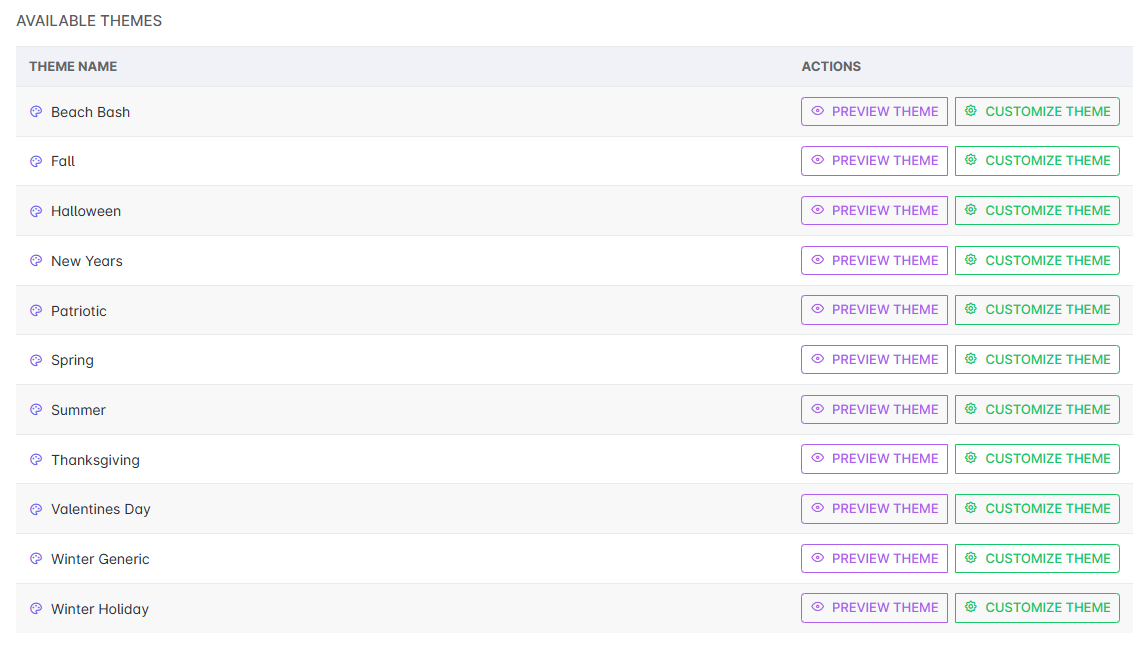
The two buttons next to each theme do different things:
- Preview Theme — Opens a live preview of the game running with that theme applied, without saving or changing your current configuration. Use this to compare looks before committing. You can preview as many themes as you like before making a decision.
- Customize Theme — Loads that theme's full configuration into the editor below. From here you can adjust prize labels, odds, prize images, and other game-specific settings before saving. Clicking this button does not save anything automatically — you control when changes go live.
Tip: Use Preview Theme first to evaluate the look and feel, then click Customize Theme only when you're ready to work with that theme's settings. Switching themes mid-edit will reset any unsaved changes.
Seasonal & Holiday Themes
The current theme library spans the full promotional calendar — eleven distinct themes covering the moments that matter most in marketing:
Not every game has every theme — the available themes list is tailored per game based on what fits that game's style and mechanics. As new themes are added to the library, they're assigned to the games where they make the most sense. And the best part: every new theme is delivered to your account automatically and free of charge, so your library just keeps growing without any extra work on your end.
Examples:
- Beach Bash — Bright, coastal summer energy with sand, surf, and sun imagery.
- Fall — Warm harvest tones, foliage, and autumn ambiance.
- Halloween — High-contrast spooky visuals built for October promotions.
- New Year's — Celebratory midnight countdown style for year-end events.
- Patriotic — Red, white, and blue themes for Fourth of July and Memorial Day.
- Spring — Fresh, light visuals with floral and renewal imagery.
- Summer — Vibrant warm-weather themes for peak season promotions.
- Thanksgiving — Harvest and gratitude themes for November promotions.
- Valentine's Day — Romance-focused themes with hearts and warm reds.
- Winter Generic — Wintry imagery without specific holiday references — ideal for early December or properties that prefer neutral seasonal aesthetics.
- Winter Holiday — Festive holiday themes with the full warmth and energy of the season.
These themes weren't chosen arbitrarily. The Engaged Nation team researched the promotional calendars of businesses across the country to identify the holidays and seasonal moments that consistently drive the highest player engagement. The result is a library built around real marketing opportunities — the dates your floor staff is already thinking about — so you spend less time hunting for a theme and more time running successful events.
Customizing Prize Images
Beyond the overall theme, you can customize the individual prize images displayed on game tiles, slots, or reveal positions — the icons players see when they play. Each game has a curated set of themed icons matched to its current theme, and you can swap them out to match your promotion more precisely.
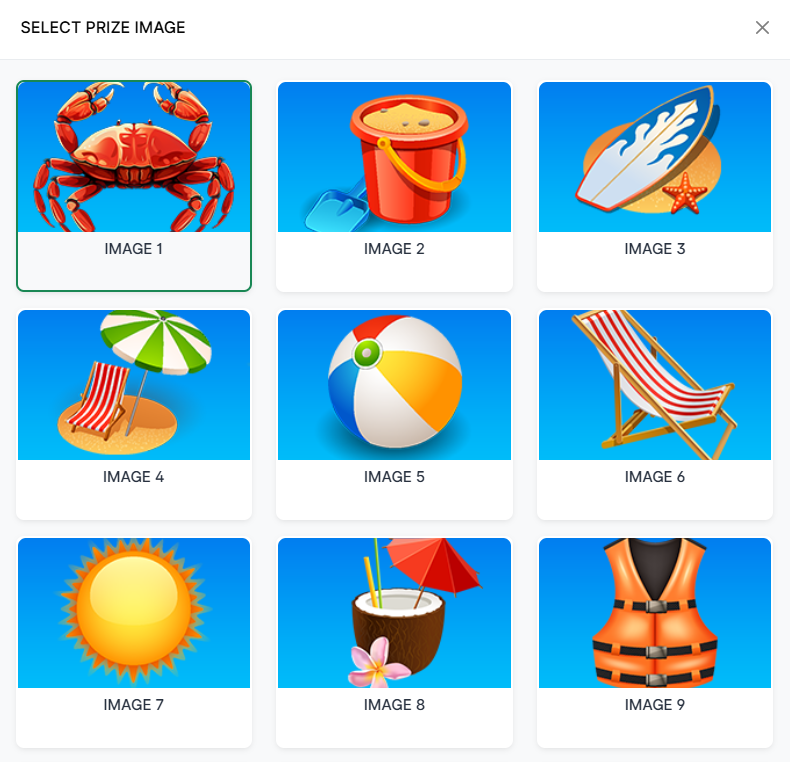
To change a prize image:
- Open the Game Customization page for the game and load your desired theme using Customize Theme.
- In the prize configuration section, look for the prize image thumbnail next to each prize row. Click it to open the Select Prize Image modal.
- Browse the available icons and click the one you want to assign to that prize position.
- Repeat for any other prize positions you'd like to customize.
- When all your changes are ready, save your configuration using the save button at the bottom of the page.
Prize image libraries are theme-matched — switching to a different overall theme will update the available icon set to match that theme's visual style.
Custom Graphics & Themes
Sometimes a seasonal theme isn't quite right — you want something that reflects your property's brand, a specific event, a sponsor partnership, or a one-of-a-kind promotion that deserves its own look. For those situations, Engaged Nation offers fully custom graphics and theme builds.
Custom work is available for a small fee. We provide a reasonable quote upfront and a quick turnaround — because we know your marketing calendar doesn't wait.
The Help section is located at the bottom of every game customization page. Click the Contact Engaged Nation for Assistance button to open the request form.
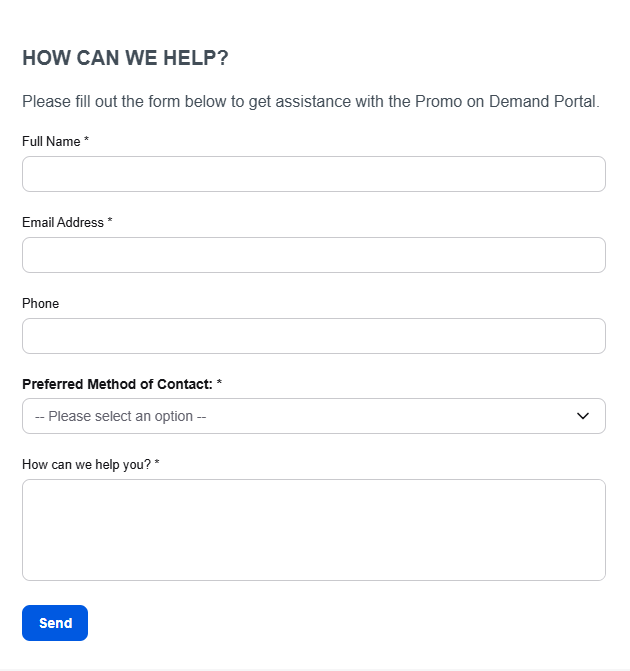
When submitting a custom graphics request, include as much detail as you can:
- The specific game or games you want themed.
- Your promotion name, dates, and any visual references or brand guidelines.
- Any specific imagery, colors, or logos that should be incorporated.
- Your preferred turnaround date.
The more context you provide, the faster the team can turn around a quote and get your custom theme into production. Most requests are fulfilled well ahead of schedule.
What's possible: Custom graphics requests can cover anything from a property-branded color scheme to fully illustrated seasonal art that's exclusive to your business. If you can describe it, we can build it.
New Games & Themes — Always Free
The Promo on Demand library is a living product. New games and new themes are added on a regular basis — and every addition is delivered to your account at no extra cost.
When a new seasonal theme drops or a new game is added to the catalog, it becomes available in your library automatically. No update to install, no upgrade fee, no request needed. One day the list gets longer, and a new option is there waiting for you.
This is Engaged Nation's way of saying thank you for being a P.O.D. customer. Your subscription isn't just access to what exists today — it's access to everything we continue to build. The value of the platform grows over time, and so does your promotional toolkit.
Included in your subscription: Every new game added to the P.O.D. catalog and every new theme built for existing games is delivered to your account free of charge. No increased expenses, ever.
In Summary
- Each game has its own Available Themes list accessible from the Game Customization page.
- Use Preview Theme to explore looks without committing, and Customize Theme to begin editing.
- Eleven seasonal and holiday themes are available today, covering the full promotional calendar. More are coming soon.
- In some games prize images can be swapped within any theme using the Select Prize Image modal.
- Fully custom graphics and theme builds are available for a small fee — request via the Help section on any game customization page.
- New games and themes are added regularly and delivered to all P.O.D. customers at no additional cost.