
Every time a player sits down and plays a P.O.D. game, the system captures a complete record of that session — from the moment the game loads to the final prize outcome. That record is your audit trail: a timestamped, exportable log of who played, what they won, who ran the game, and how the session performed.
Whether you're reviewing prize distribution after a promotion, responding to a player inquiry, or preparing documentation for compliance purposes, the audit system gives you the data you need — organized per custom game configuration, searchable, and downloadable as a CSV.
Accessing Audit Data — Admin Users Only
Admin users access gameplay audit data through the Games section of the admin sidebar.
- Click Games in the left navigation to open your Game Management page.
- Locate the game you want to review and click the "VIEW" link to open the Custom Game Details table.
- On the Custom Game Details table, find the custom game configuration you want to audit and click the triple-dots menu button to access Gameplay Data for that configuration.
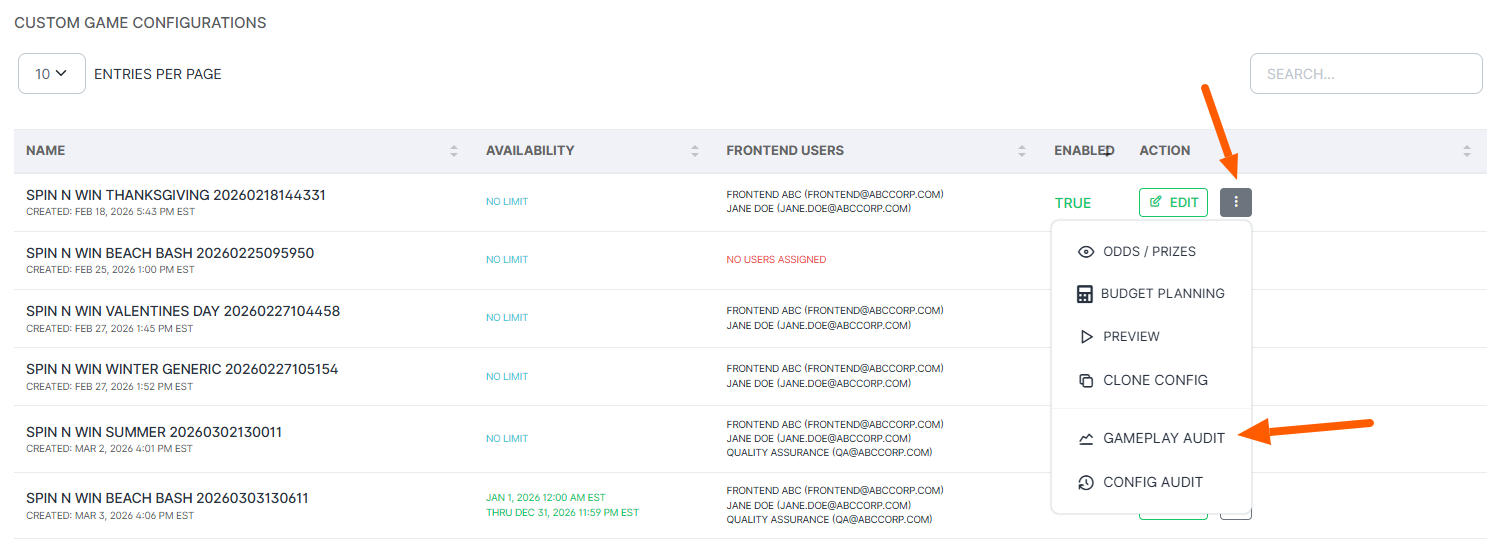
The audit view is scoped to a single custom game configuration — so if you have multiple configured versions of the same game (for example, a New Year's version and a Beach Bash version), each one has its own independent audit trail.
Accessing Audit Data — Frontend Users Only
Frontend users can also access the gameplay audit for any game assigned to them — directly from the game lobby.
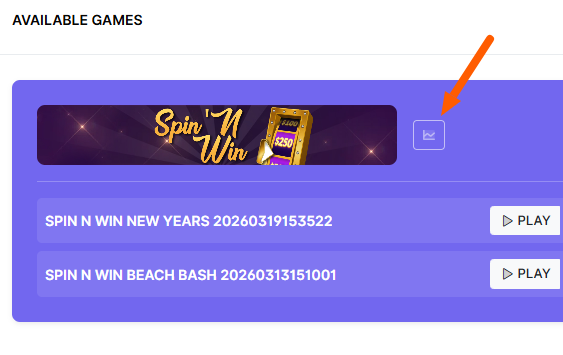
On the Available Games screen, look for the small chart icon on the right side of each game's banner image. Clicking that icon opens the audit data view for that game, showing all sessions played under your organization's configurations.
Role note: Frontend users can view audit data for games assigned to their organization, but they cannot modify configurations or delete records. The audit view is read-only for all user types.
The Audit Table
The audit view opens a full-page table showing every recorded session for that custom game configuration, most recent first. The header tells you the game name and total session count at a glance.
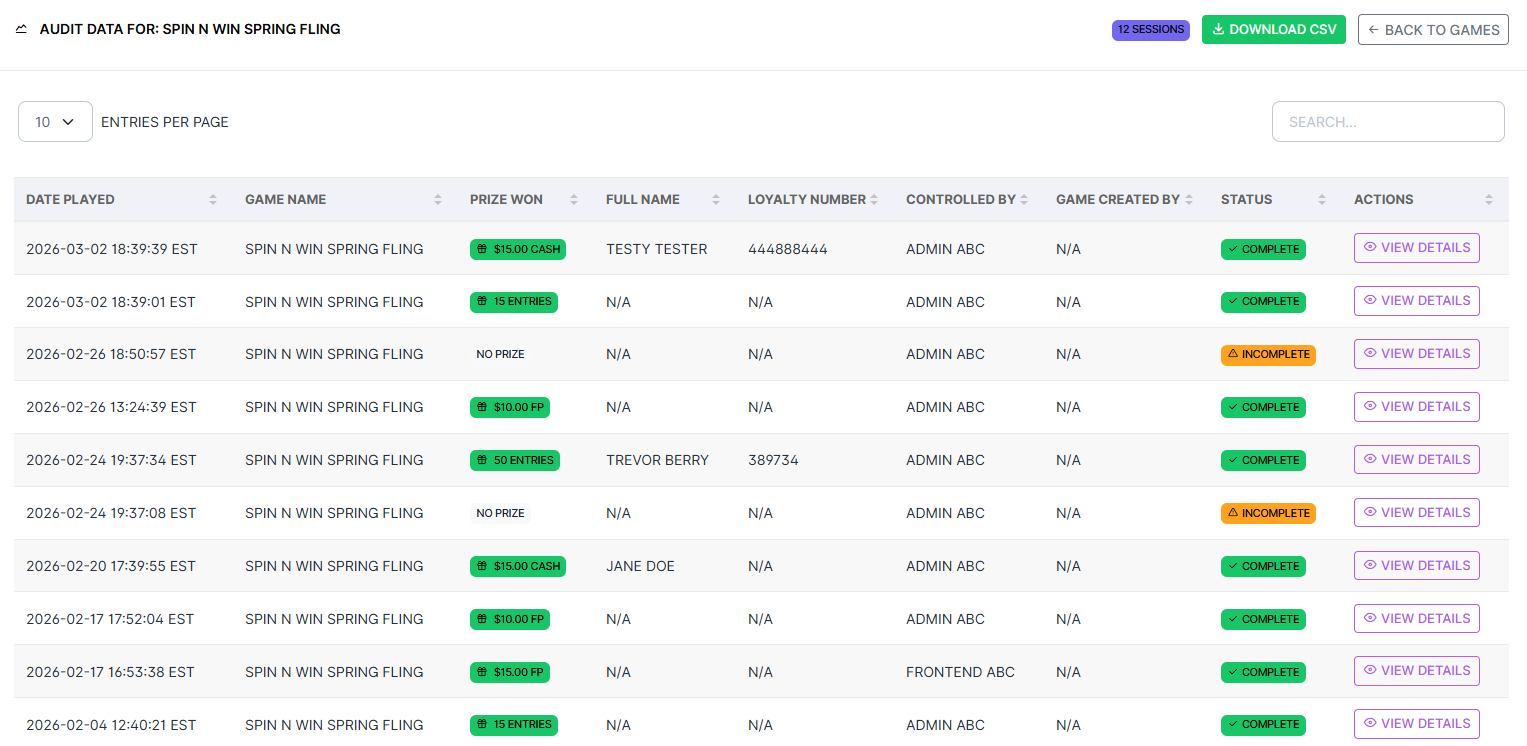
Each row in the table represents one gameplay session and shows:
- Date Played — The date and time the session was recorded, displayed in your organization's configured timezone.
- Game Name — The name of the custom game configuration that was played.
- Prize Won — The outcome of the session, displayed as a color-coded badge (e.g., $15.00 Cash, 15 Entries, No Prize). Sessions that ended without a prize are clearly labeled.
- Full Name — The player's name, if captured. Sessions where a player did not register their name will show N/A.
- Loyalty Number — The player's Loyalty Number, if provided at the time of play.
- Controlled By — The frontend employee who launched and ran this session.
- Game Created By — The admin or frontend user credited with the game configuration.
- Status — Complete means the session ran to a prize outcome. Incomplete means the session was interrupted before a result was recorded — this can happen if the browser was closed mid-game or connectivity was lost.
- Actions — A View Details button opens the full session record for that row.
The table is searchable and paginated. You can control how many entries appear per page and search by player name, Loyalty Number, or any other visible field.
Downloading as CSV
The Download CSV button at the top of the audit table exports the complete session list for that custom game configuration to a spreadsheet file. The export includes all columns visible in the table and is ready to open in Excel, Google Sheets, or any spreadsheet application.
This export is suitable for compliance documentation, prize reconciliation, and sharing with your marketing or gaming compliance team. Keep in mind that the CSV represents all sessions for that specific game configuration — if you need data across multiple configurations or games, download each separately.
Session Detail View
Clicking View Details on any row opens the complete record for that individual session, organized into clearly labeled sections. Most day-to-day audit reviews only need the top-level fields — but the full detail view contains everything needed to reconstruct exactly what happened during any session.

Session Overview
The top section identifies the session itself:
- Audit ID — A unique identifier for this audit record.
- Session ID — The unique identifier assigned to this gameplay session by the game engine.
- Recorded Date/Time — The exact timestamp when the session data was written to the audit log.
- User Agent — The browser and operating system used during the session (e.g., Chrome on iPad).
- IP Address — The network address of the device that ran the session.
Participant
- Full Name — The player's name as entered before or during the game.
- Loyalty Number — The player's card number, used to verify eligibility and link the session to your player tracking system.
- Controlled By — The frontend employee who launched this session. This field is important for verifying that a real staff member was present and operating the game.
Game Results
- Status — Complete or Incomplete. A complete session reached a final prize outcome; an incomplete session was interrupted before the game and/or prize were recorded (generally happens if a user closed the game prematurely).
- Prize Won — The specific prize the player received, matching what was configured in the game's prize table at the time of play.
Game Information
- Custom Game Name — The name of the specific game configuration that was played (as set by the admin who created it).
- Theme — The visual theme that was active on this game at the time of the session.
- Game URL — The direct link to the game as it was served during this session.
- Game ID — The system identifier for the base game type.
- Config ID — The identifier for the specific custom configuration used — useful when multiple versions of a game exist side by side.
- Game — The base game name (e.g., Spin N Win, Memory Match).
Advanced & Diagnostic Data
The session detail also captures a set of technical fields that go beyond what's typically needed for prize reconciliation. These are primarily useful for troubleshooting — if a session behaved unexpectedly, these fields help the Engaged Nation support team diagnose the issue quickly. Engaged Nation may request this data when replying to a support request from you.
Troubleshooting tip: If a player reports that a game didn't behave correctly, pull up the session's View Details record and share the full detail record with the Engaged Nation support team. The diagnostic fields below often contain exactly what's needed to identify the cause.
Performance Metrics
- Load Time — How long the game took to fully load before it was ready to play. High load times may indicate a slow network or device.
- Configuration Time — How long it took the game to receive and apply its configuration after loading. Unusually high values may indicate a connectivity issue between the game and the configuration service.
- Resize Events — The number of times the game display was resized during the session. This commonly happens when a tablet is rotated between portrait and landscape orientation mid-session.
User Interactions
- Modal Opened — Records when the player information modal (where players enter their name and Loyalty Number) was opened.
- Modal Closed — Records when that modal was dismissed, whether by the player completing entry or by closing it manually.
These interaction events are helpful for verifying whether a player had the opportunity to enter their information, or whether the modal flow was skipped or interrupted.
Session Timing
- Launched Date/Time — When the game was first opened by the frontend employee.
- Started Date/Time — When the player actually began playing (after the intro sequence or player entry modal).
- Completed Date/Time — When the session reached its final state — either a prize outcome or an incomplete close.
- Total Duration — The total elapsed time from launch to completion. Abnormally short durations may indicate the session was closed before completing; unusually long durations may indicate the device was left idle.
Drawing Tool: Winner Records & Audit
In addition to game session audits, P.O.D.'s Drawing Tool maintains its own complete winner history for every drawing bucket. This is separate from gameplay audit data — it covers random player drawings rather than game sessions.
To access drawing records, navigate to Drawings in the admin sidebar. On the Drawing Buckets table, each uploaded player pool has four action icons on the far right:
- Show Previous Winners — Opens a detailed, searchable table of every player drawn from this bucket, including their name, loyaltynumber, and the exact date and time they were selected.
- Download Previous Winners — Exports the complete winners list as a CSV file, ready for your records or compliance reporting.
- Show Drawing Bucket Audit — Opens a full audit trail of every action taken on this drawing bucket — who ran each draw, when, and what the result was.
- Reset Previous Winners — Clears the winners list for this drawing bucket, resetting it to a clean state. Use this when starting a new promotional period and you no longer need the previous draw history.
See the Using the Random Player Drawing Tool article for a complete guide to the drawing system.
In Summary
- Audit data is scoped per custom game configuration — each configured version of a game maintains its own independent session log.
- Admin users access audit data from the Game Details page. Frontend users access it via the chart icon on each game card in the Available Games screen.
- The audit table shows prize outcomes, player names, Loyalty Numbers, the employee who controlled the session, and a Complete/Incomplete status for every session.
- Click View Details on any row to see the full session record, including participant info, game and config identifiers, timing breakdowns, and diagnostic performance data.
- The Download CSV button exports the complete session list for any custom game configuration — suitable for compliance documentation and prize reconciliation.
- Advanced diagnostic fields (load time, resize events, session timing, interaction events) can be shared with Engaged Nation support to help troubleshoot any session that behaved unexpectedly.
- The Drawing Tool maintains its own separate winner history and audit trail, also downloadable as CSV, accessible from the Drawings section of the admin sidebar.