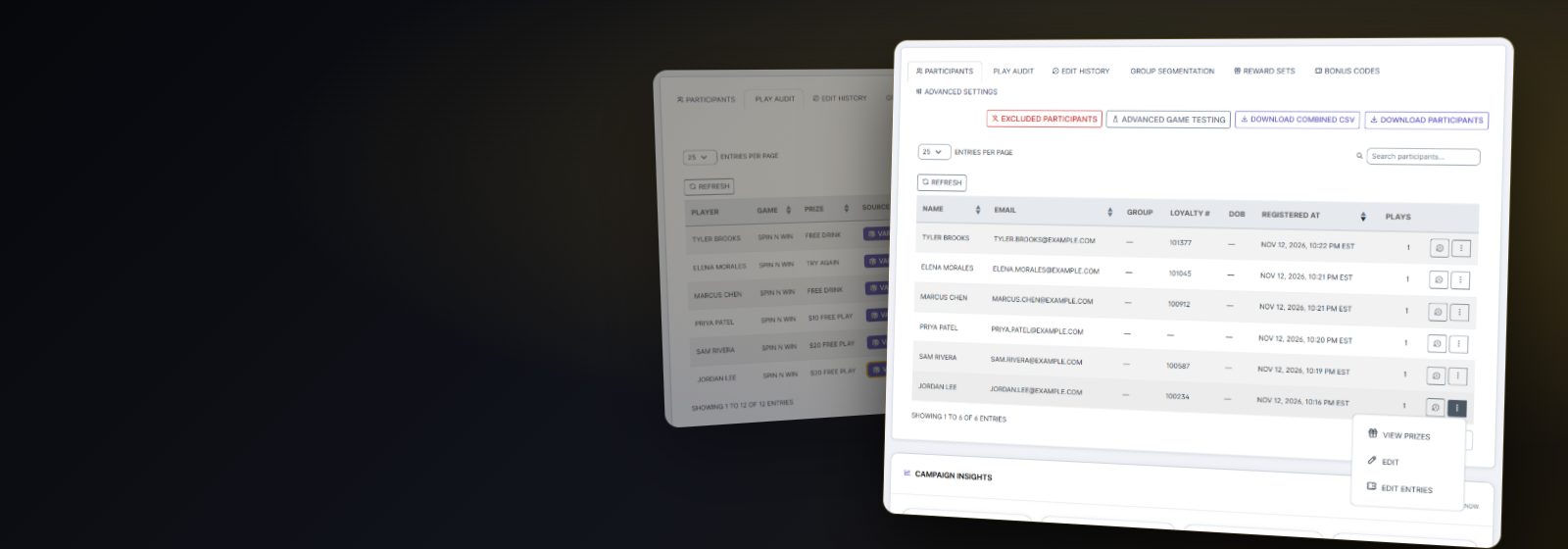
Your campaign is live and players are arriving. This guide covers the day-to-day: finding and helping players, drawing entries, recording prizes handed over, the reports, changing the campaign while it runs, and what happens when it ends.
Everything here starts from the campaign's page: click Campaigns in the menu, then the campaign. Admins can do all of it. Representatives look after the players: participants, drawing entries, prizes, sign-ins and downloads. Changing the campaign itself is for admins. To build a campaign first, see Create Your First Campaign.
Statuses, and What Players See
- Draft: not launched yet. Players see "Campaign Unavailable". Go Live, beside the status on its page, launches a finished draft.
- Live: before its start date players see "Coming Soon" with a countdown; between its dates they register and play.
- Disabled: turned off with Disable Campaign in the campaign's ⋮ menu. Players see "Campaign Unavailable" until you click Re-Enable. Nothing is deleted.
- Ended: past its end date. Players see your Thank You page, or "Campaign Has Ended".
Only drafts can be deleted, with Delete Draft in the Campaigns list's ⋮ menu. The Knowledge Base lists every message a player can see, and what to do about each.
Your Participants
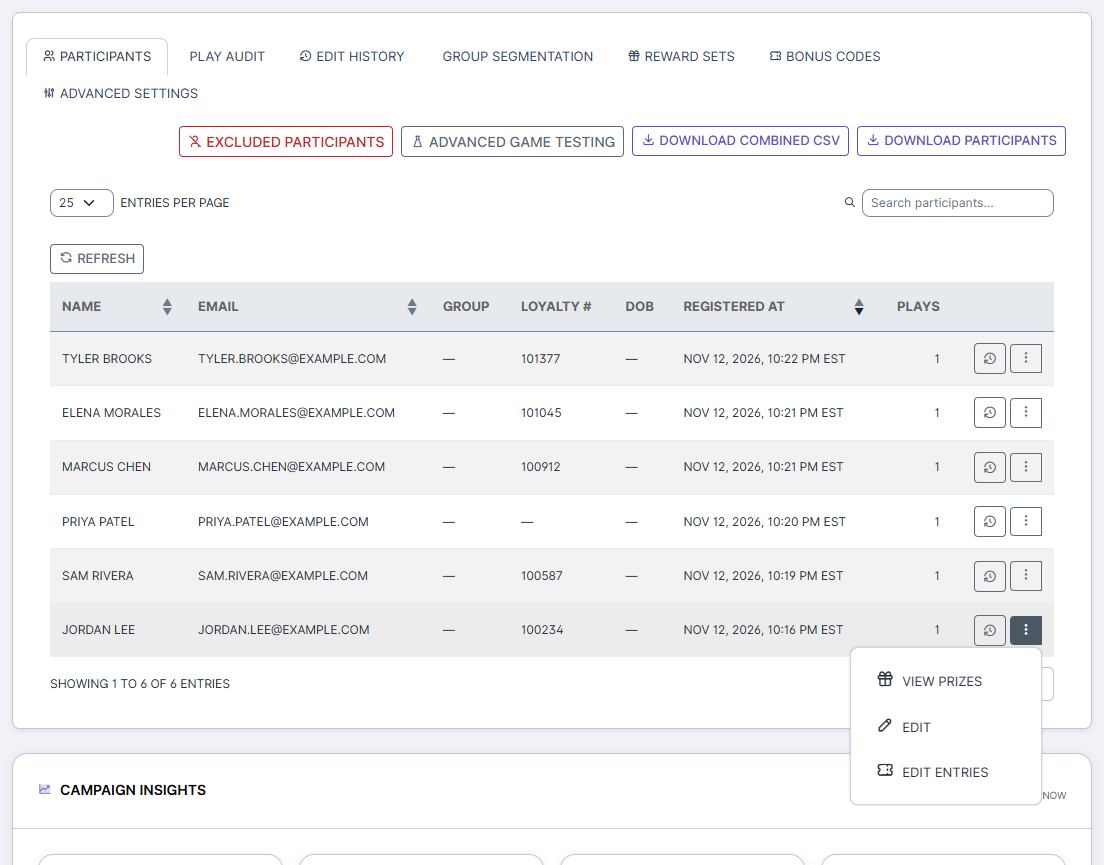
The Participants tab lists everyone who has registered: Name, Email, Group, Loyalty #, DOB, Registered At and Plays. Type in Search participants… to find someone by name, email or loyalty number. Each row's ⋮ menu has:
- View Prizes: their plays, what each won, and their total drawing entries;
- Edit: their name, email, phone, loyalty number, nickname and date of birth;
- Edit Entries: add or take away drawing entries;
- on a football campaign View Picks, and on a survey campaign View Survey Answers.
Admins can also turn a player's account off: Edit, then Account Enabled. A disabled player can't sign in or play, and sees "Account Disabled". Their plays are kept.
A player can't sign back in? Returning players use Returning Player and Find My Account with the details they registered with. Find them here, check those details, and correct them with Edit if needed.
Drawing Entries
- For one player: their ⋮ menu, Edit Entries. Type an Adjustment, positive to add or negative to take away, an optional Note, and click Save Adjustment. It shows in the Play Audit as an Admin Adjustment.
- For everyone, now: Advanced Settings, Drawing Entries Reset. Set Reset entries earned up to, or leave it blank for now, click Reset Drawing Entries, then Yes, reset the entries.
- For everyone, on a schedule: in Edit Campaign, Step 3's Drawing Entry Resets, for example after each weekly drawing.
A reset deletes nothing: the plays stay in the Play Audit, and only the entries stop counting.
Plays and Prizes
The Play Audit tab lists every play: Player, Game, Prize, Source, Played At, IP Address and Agent Data. The Source says how the prize was decided: Variable Odds (drawn by the odds), Matrix Match (the player's row in your One-to-One list), Default Prize (they weren't in your list), Survey Completed, Bonus Code or Final Quiz.
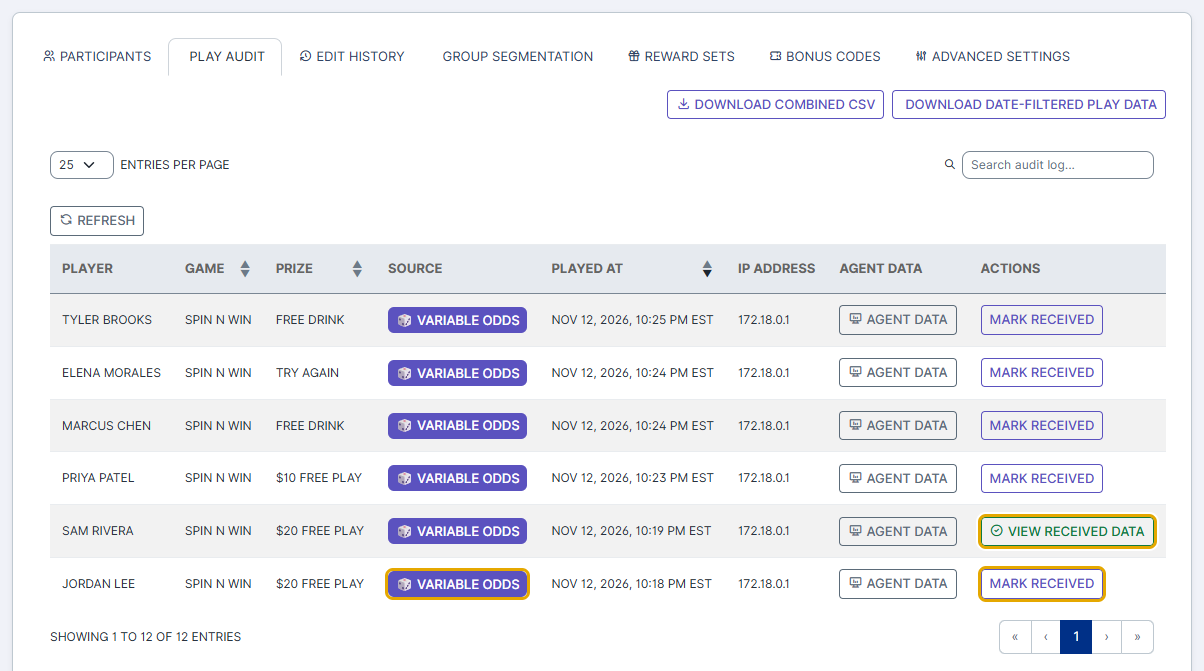
When a player collects a prize, click Mark Received on the play, here or in their View Prizes. It records who handed it over and when, and becomes View Received Data. A prize can be marked once, so it can't be handed over twice.
Sign-Ins and Shared Accounts
The clock button on a participant's row opens their history: every sign-in with its time, IP address, how they signed in and their device; their group changes; their plays with the IP each came from; and Accounts sharing an IP or device with them. A shared IP can be casino Wi-Fi or a hotel; a shared device is a stronger sign of one person with several accounts. Admins can Disable this account from there.
Downloads
- Participants tab: Download Participants (everyone registered) and Download Combined CSV (every play with its participant's details).
- Play Audit tab: Download Date-Filtered Play Data, the plays between two times you choose.
- On a survey campaign: Download Survey Answers.
- Edit History tab (admins): Download CSV, every change to the campaign.
Each file is prepared first, then downloads by itself. See Reading Your Statistics & Audit Reports for all the reports.
Changing a Live Campaign
Players are already using it, so changes are made with care:
- Edit Campaign, in the campaign's ⋮ menu, opens the wizard after a warning, WARNING: Active Campaign Modification. Click Accept and Continue; your acceptance is recorded in the campaign's history. Its type can't change.
- Manage Game Rewards, on the Campaign Info tab, opens Advanced Game Testing. Edit Game there changes a game's prize mode, play limits, One-to-One list and default prize. Simulate Gameplay shows what a participant would win right now, without saving anything.
- Restrict Editing… limits changes to the admins you choose.
The Advanced Settings tab has a few switches of its own:
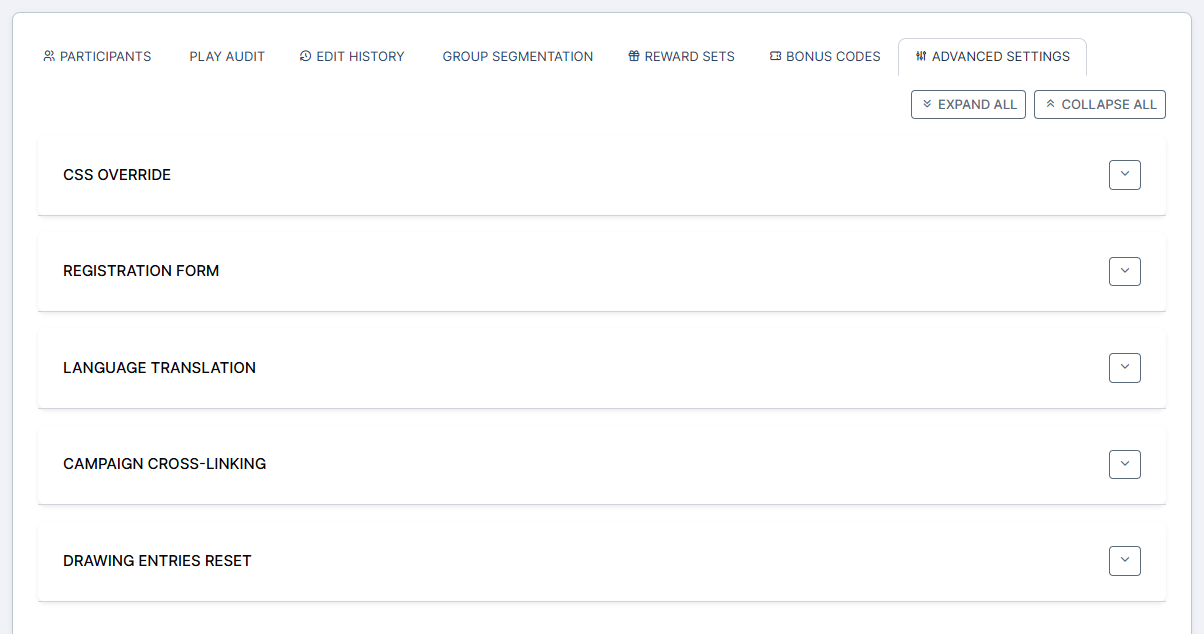
- Registration Form: turn off Allow new participants to register to hide New Player, so only players you already have can sign in.
- Language Translation: a language picker for the campaign's pages.
- Campaign Cross-Linking: a button that takes signed-in players to another of your campaigns, signed in there.
- Drawing Entries Reset: see above.
- CSS Override: for web developers fixing a small styling problem.
Excluded Participants, a button on the Participants tab, takes a list of people who may play but mustn't win drawings or appear on leaderboards, such as employees.
Drawing Winners From It
To draw winners from the campaign's players, weighted by their entries, go to Drawings in the menu and click Create Drawing From Campaign. Choose the campaign and the dates whose entries count, choose the games and activities, name the bucket and click Import Data. Then draw from it as from any bucket.
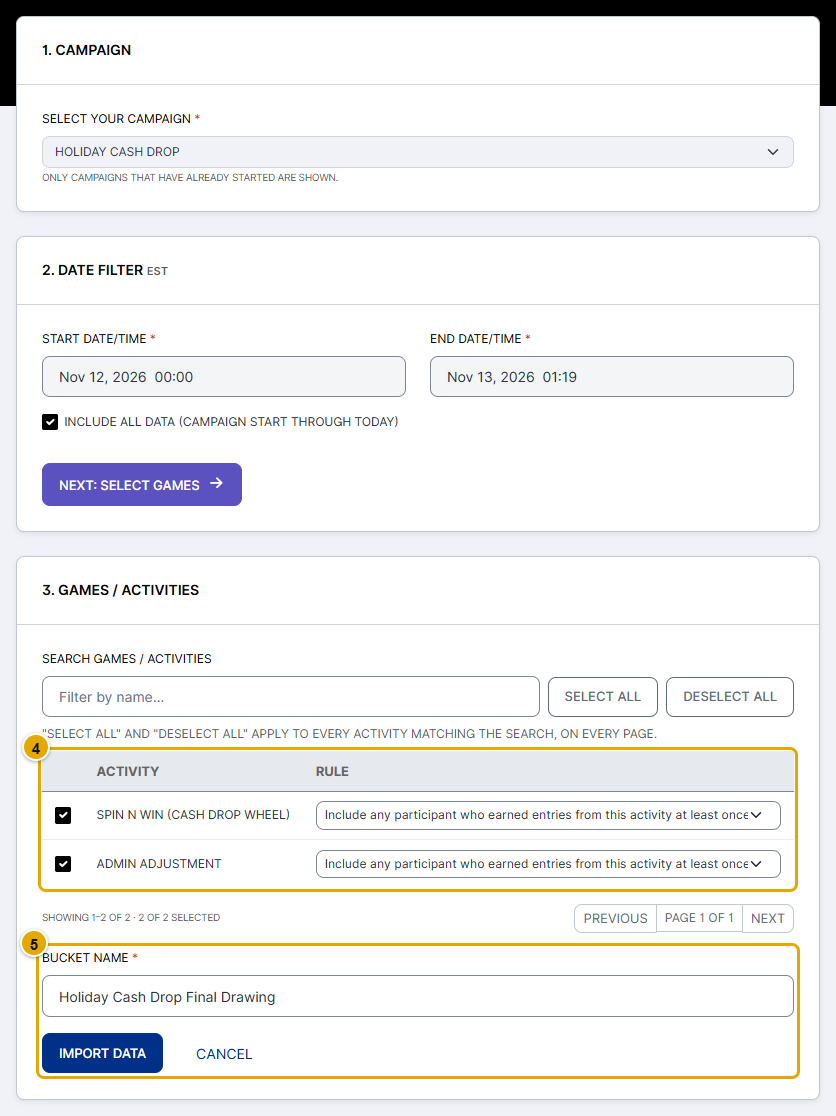
See Using the Random Player Drawing Tool for picking winners, the Lottery Tool and the winners' audit.
When It Ends
A live campaign ends by itself after its end date. Players then see your Thank You page, and the game configurations it used are freed. Its participants, plays and reports stay on its page. An ended campaign can't be re-enabled: to run it again, make a new one.
In Summary
- The Participants tab finds a player; their ⋮ menu views their prizes, edits their details and adjusts their entries.
- The Play Audit shows every play and how its prize was decided; Mark Received records a prize handed over.
- A participant's clock button shows their sign-ins and any accounts sharing their IP or device.
- Reset everyone's drawing entries from Advanced Settings, or on a schedule in the wizard.
- Change a live campaign with Edit Campaign after its warning, or its prizes with Manage Game Rewards.
- Create Drawing From Campaign turns its players' entries into a drawing.